Create a SLURM Cluster with Terraform
SLURM is an open-source job scheduler for compute clusters. You submit a job describing the program to run and the CPUs, memory, nodes, and time it needs. SLURM queues the job until resources are available, starts it on the allocated nodes, and tracks its status.
Use SLURM for work that runs to completion, such as processing satellite images, running simulations, or executing parallel programs with MPI (Message Passing Interface). You can submit many jobs and let SLURM assign resources to each one, without logging in to individual workers to start programs manually.
Both SLURM and Kubernetes distribute workloads across cluster nodes. Kubernetes manages applications packaged as containers, including long-running services and batch jobs. SLURM focuses on queued compute jobs and can allocate several nodes together for a parallel run. In this example, programs run directly on the virtual machines and access files through shared storage.
This article takes you from creating the virtual machines on OpenStack to submitting your first SLURM job. Terraform creates the infrastructure, and cloud-init installs and configures SLURM, MUNGE authentication, Open MPI, and shared storage on first boot.
The example creates myslurmcluster with one controller and two workers running Ubuntu 24.04 LTS. The controller also provides SSH access and shares its /home directory with the workers over NFS. Jobs run on the two workers. SLURM makes two CPUs and 6 GiB RAM per worker available to jobs.
Prerequisites
No. 1 Cloud account and project
Log in to Horizon at https://identity.cloudferro.com/auth/realms/CODE-DE3/account/ and select the project and region in which you will create the cluster.
No. 2 Terraform and OpenStack authentication
Follow Generating and authorizing Terraform using Keycloak user on CODE-DE-Lab to install Terraform and authenticate the OpenStack CLI. Use Terraform 1.6 or later in the 1.x series. Keep the project’s RC environment active in your local Linux terminal; openstack flavor list must return the available flavors.
The commands below use that same terminal. Python 3, OpenSSH, and unzip must also be installed locally. Run Terraform as your normal user.
No. 3 SSH key pair
Prepare a key pair as described in How to create key pair in OpenStack Dashboard on CODE-DE-Lab. Keep both the public and private key files on your local computer. Terraform imports the public key into OpenStack; the private key is used by SSH.
For a private key protected by a passphrase, load it into your SSH agent with ssh-add /path/to/private-key before running the connection check in Step 4.
No. 4 Image, network, and quota
Use an Ubuntu 24.04 LTS x86-64 cloud image with these flavors:
Role |
Instances |
Flavor |
vCPUs each |
RAM each (Horizon) |
|---|---|---|---|---|
Controller |
1 |
eo1a.medium |
2 |
4 GB |
Worker |
2 |
eo2a.large |
2 |
7.45 GB |
Terraform creates the cluster’s private network, IPv4 subnet, and router in Step 3. The router connects the nodes to the internet for package installation. Terraform also allocates and attaches a floating IP to the controller. You select the cloud’s existing external network in Step 2.
Check the available capacity using Dashboard Overview – Project Quotas And Flavors Limits on CODE-DE-Lab. This example uses 3 instances, 6 vCPUs, about 19 GB RAM, and 3 boot volumes totalling 90 GiB. The controller’s 50-GiB volume also holds the shared home directories; each worker has a 20-GiB boot volume.
Networking uses 1 private network, 1 subnet, 1 router, 1 floating IP, and 2 security groups.
No. 5 EODATA network for the EO processing workflow
For private EODATA access, find the existing EODATA network in your project. Run this command in your local terminal with the OpenStack session from Prerequisite No. 2 active:
openstack network list -c ID -c Name
Find the row named eodata or whose name starts with eodata_. Copy its ID for eodata_network_id in Step 2. Terraform attaches this network to the controller and both workers during cluster creation.
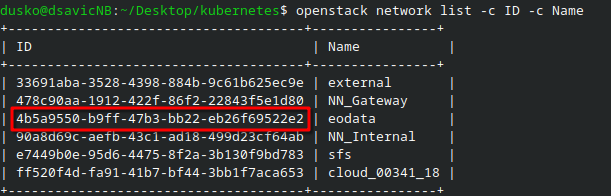
The eodata network ID in the OpenStack network list.
Configure the EODATA S3 endpoint and credentials on the controller later, in the companion EO processing workflow.
Step 1: Download the cluster configuration
Download slurm-terraform.zip into your local working directory and extract it:
unzip slurm-terraform.zip
cd slurm-terraform
cp terraform.tfvars.example terraform.tfvars
The bundle contains the Terraform resources, the cloud-init template, the SLURM configuration template, and two setup scripts. You only need to edit terraform.tfvars.
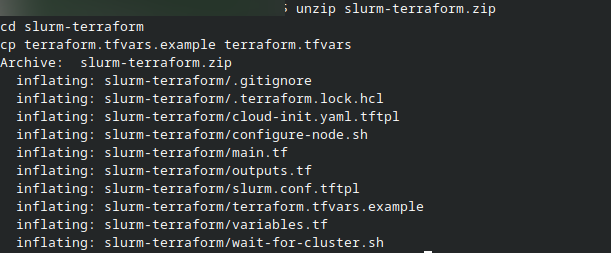
Extracting the Terraform configuration files from slurm-terraform.zip.
Step 2: Set the project values
Run the following commands on your local computer, in the terminal with the OpenStack session from Prerequisite No. 2 active. Collect the values, then enter them in terraform.tfvars as shown below.
Find the Ubuntu image ID
List the available active images:
openstack image list --status active -c ID -c Name
Find the Ubuntu 24.04 LTS x86-64 image and copy its ID. This UUID is the value for image_id. Use it to replace UBUNTU_24_04_IMAGE_UUID in terraform.tfvars, keeping the quotation marks.
Find the external network name
List the external networks:
openstack network list --external -c ID -c Name
Copy the Name into external_network_name. The network in this example is named external, so the setting is:
external_network_name = "external"
Find your public IPv4 address for SSH
Run this command on your local computer using the same internet or VPN connection you will use for SSH:
curl -4 -fsS https://api.ipify.org
The command prints your connection’s public IPv4 address. Append /32 to that address and use the result for ssh_cidr. For example, an address of 203.0.113.10 gives:
ssh_cidr = "203.0.113.10/32"
Replace 203.0.113.10 with the address returned by your command. The /32 allows SSH from that single public IPv4 address.
Find the EODATA network ID
For the eodata network identified in Prerequisite No. 5, print its UUID:
openstack network show eodata -f value -c id
Copy the returned UUID into eodata_network_id, between the empty quotation marks in terraform.tfvars. If the network name starts with eodata_, use its full name in place of eodata in the command.
Leave eodata_network_id empty when using an endpoint reached through the cluster router.
Edit the variables file
From the slurm-terraform directory, open the variables file:
nano terraform.tfvars
Replace the uppercase placeholders with the values collected above, and fill in eodata_network_id with the copied network UUID:
# Replace the uppercase placeholders with values from your OpenStack project.
cluster_name           = "myslurmcluster"
worker_count           = 2
image_id               = "UBUNTU_24_04_IMAGE_UUID"
controller_flavor_name = "eo1a.medium"
worker_flavor_name     = "eo2a.large"
external_network_name  = "EXTERNAL_NETWORK_NAME"
ssh_cidr               = "YOUR_PUBLIC_IPV4/32"
ssh_public_key_path    = "~/.ssh/id_ed25519.pub"
ssh_private_key_path   = "~/.ssh/id_ed25519"

# Terraform creates the private network, subnet, and router.
subnet_cidr     = "192.168.50.0/24"
dns_nameservers = ["1.1.1.1", "8.8.8.8"]

# Supply the network UUID when using the project's private EODATA endpoint.
eodata_network_id = ""

controller_disk_gb = 50
worker_disk_gb     = 20
Keep controller_flavor_name = “eo1a.medium”, worker_flavor_name = “eo2a.large”, and worker_count = 2. Set the two key paths to your existing public and private key files.
Terraform creates a private subnet using subnet_cidr, which defaults to 192.168.50.0/24. Use a range that does not overlap the EODATA network. DHCP supplies the nodes with addresses, a default route through the router, and the DNS servers listed in dns_nameservers.
Save the file with Ctrl+O, press Enter, and exit Nano with Ctrl+X.
Step 3: Create the cluster
Obtain a token from your active OpenStack session and initialize Terraform:
export OS_TOKEN="$(openstack token issue -f value -c id)"
terraform init
terraform validate
terraform plan -out=cluster.tfplan
The plan will contain hundreds of lines of text like these:
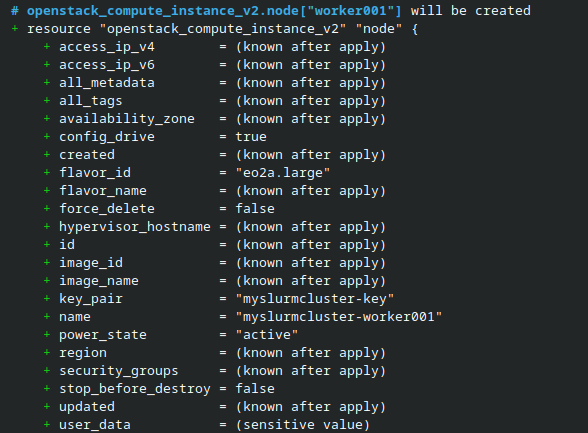
Terraform plan for the worker001 instance.
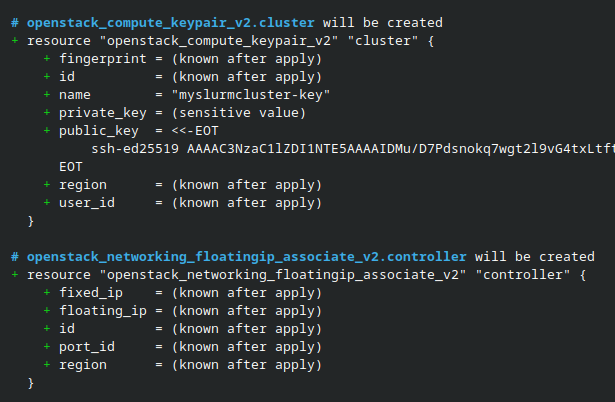
Terraform plan for the SSH key pair and controller floating IP association.
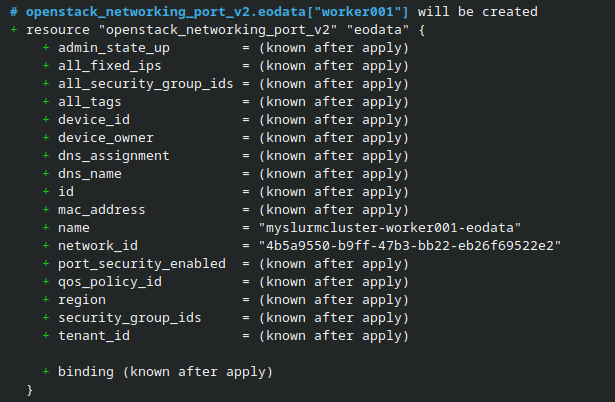
Terraform plan for the worker001 EODATA port.
Review the plan, then create the resources:
terraform apply cluster.tfplan
The plan will start unfolding and, in the end, you want to see this message:
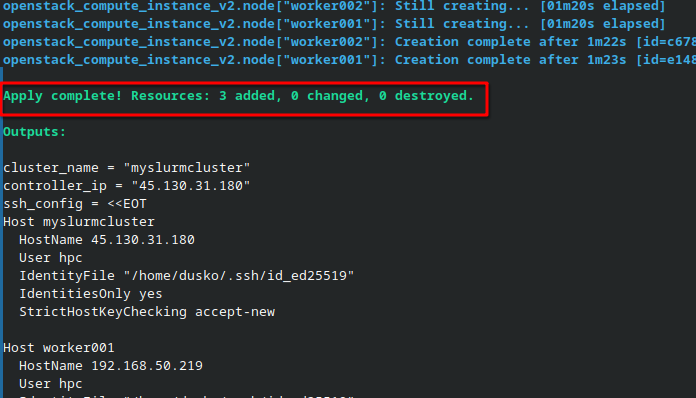
Terraform completes resource creation and displays the controller IP address and SSH configuration.
Terraform creates myslurmcluster-network, myslurmcluster-subnet, and myslurmcluster-router. It connects the subnet to the router and enables outbound internet access through the selected external network before starting the VMs.
The three VMs are myslurmcluster-controller001, myslurmcluster-worker001, and myslurmcluster-worker002. The controller receives the floating IP shown by:
terraform output -raw controller_ip
The cluster security groups allow communication between the nodes and SSH to the controller from ssh_cidr. Workers are accessed through the controller.
Step 4: Wait for setup and log in
After Terraform finishes, cloud-init continues installing the packages and configuring the cluster. Run the supplied script to wait for setup on all three nodes:
bash wait-for-cluster.sh
The script also creates ssh_config in the Terraform directory. Use it to log in as hpc on the controller:
ssh -F ./ssh_config myslurmcluster
The controller’s hostname is controller001. Your home directory, /home/hpc, is shared with every worker.
Step 5: Verify the workers and shared storage
Run these commands on the controller:
sinfo -N -o '%N %P %t'
srun --nodes=2 --ntasks=2 --ntasks-per-node=1 hostname
The compute partition must list worker001 through worker002 as idle before the first job. The srun command prints the two worker hostnames, one per task.
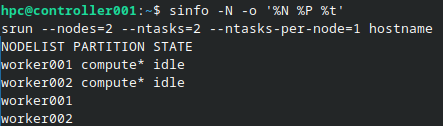
Both workers are idle and return their hostnames.
Create a file in your home directory and read it from both workers:
printf 'Shared home is ready\n' > ~/shared-home-check.txt
srun --nodes=2 --ntasks=2 --ntasks-per-node=1 cat /home/hpc/shared-home-check.txt

Both workers read the file from the shared home directory.
The message appears twice. Check MPI and boto3 using mpirun inside a SLURM allocation:
salloc --nodes=2 --ntasks=2 --ntasks-per-node=1 --time=00:05:00 \
  mpirun -np 2 --map-by ppr:1:node \
  /usr/bin/python3 -c 'from mpi4py import MPI; import boto3; print("MPI and boto3 are ready")'
The command prints MPI and boto3 are ready once per worker. The cluster is ready when all three checks succeed.

The MPI and boto3 check succeeds on both workers.
Troubleshooting setup
If the waiting script reports a cloud-init failure, inspect that node from your local Terraform directory. For example, for worker001:
ssh -F ./ssh_config worker001 'sudo tail -n 80 /var/log/cloud-init-output.log'
For a worker that is not idle, inspect its SLURM state on the controller:
sinfo -R
scontrol show node worker001
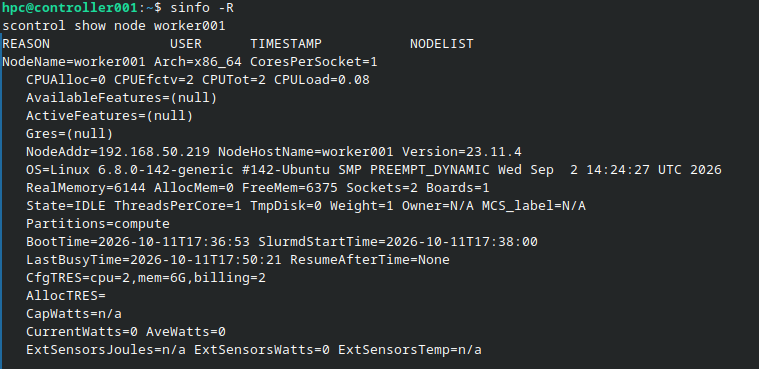
SLURM configuration and current state of worker001.
Show new instances in Horizon
We can see the new element through various options in Horizon. For instance, option Compute -> Instances will show the following output:
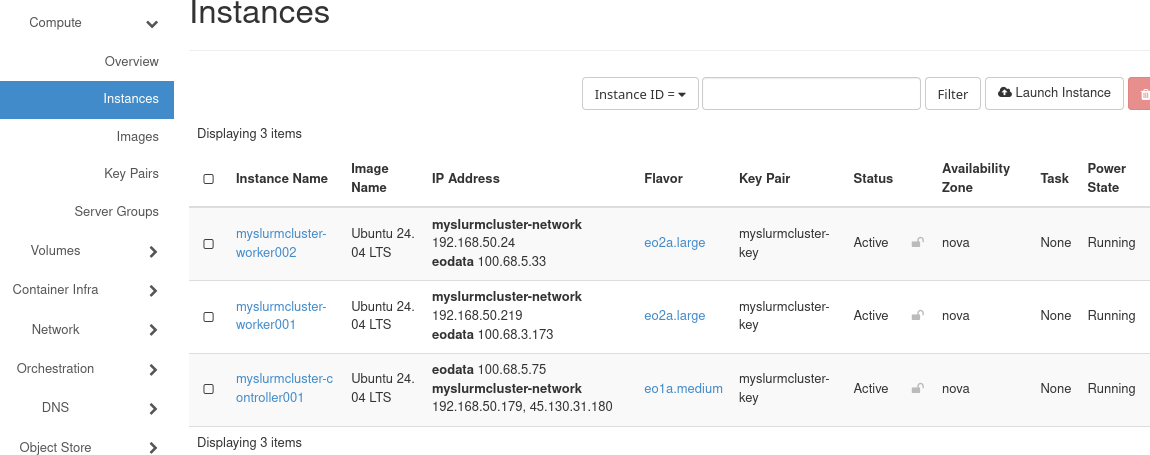
The SLURM controller and both workers running in Horizon.
There will three new volumes too (use command Volumes -> Volumes):
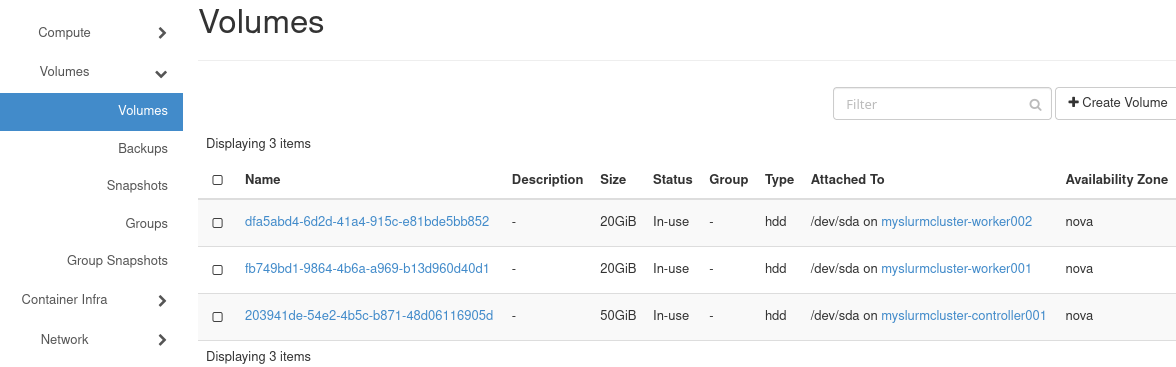
The controller and worker boot volumes in Horizon.
The network has a new member, the rightmost network myslurmcluster-network
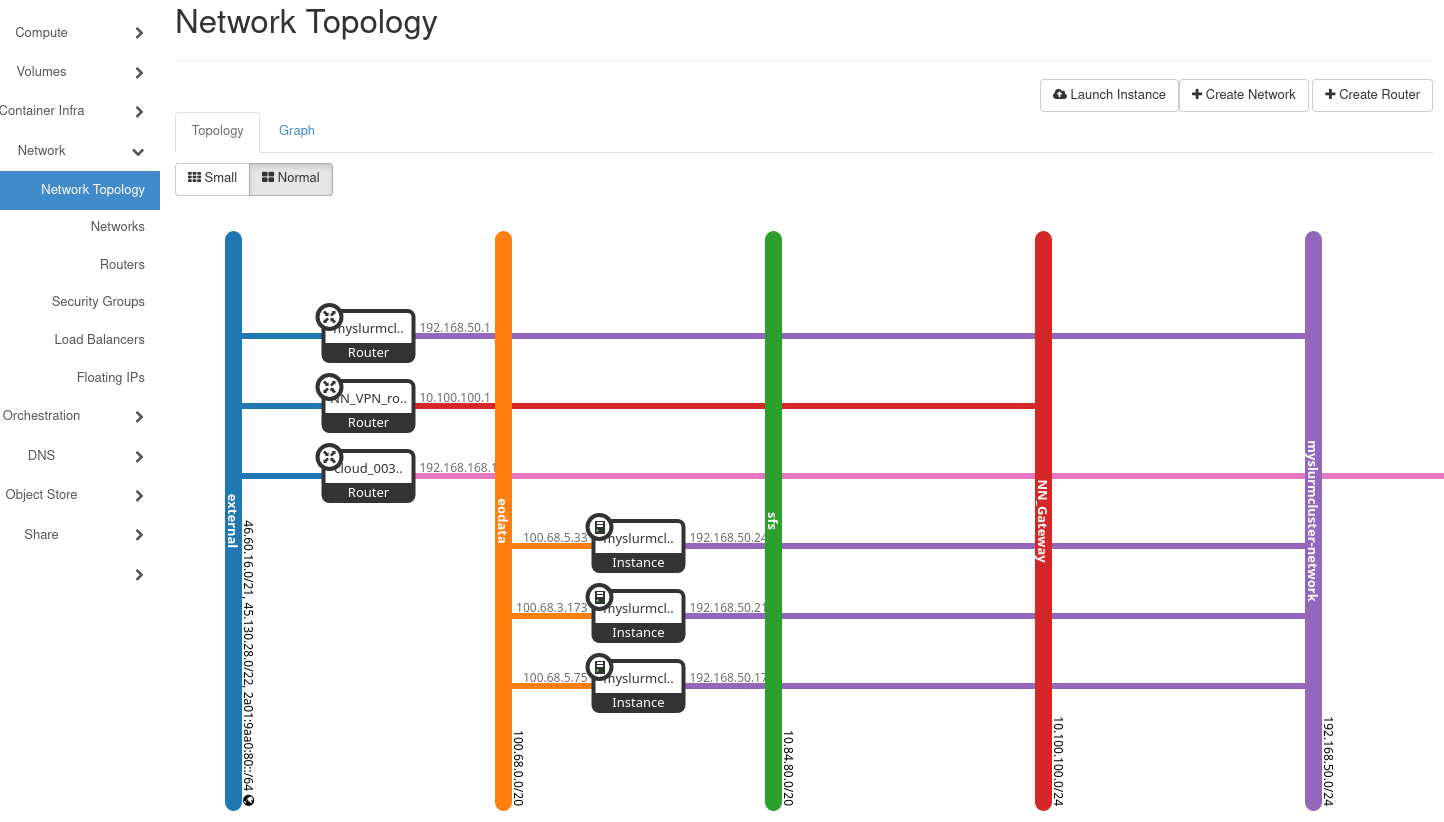
The SLURM cluster network, router, and EODATA connections in Horizon.
Optional: Remove the cluster
Copy the results you want to keep to your local computer first. Destroying this cluster deletes all three instances and their boot volumes, including the controller’s shared /home directory.
Exit the controller and run these commands from the local slurm-terraform directory, with the project’s RC environment active:
export OS_TOKEN="$(openstack token issue -f value -c id)"
terraform destroy
Review the proposed deletions and enter yes to remove the cluster.
Terraform also removes the cluster’s private network, subnet, router, floating IP, and security groups. The cloud’s external network and the existing EODATA network remain available.
Discussion
This example has a fixed number of workers and one controller. It does not automatically add workers or provide controller failover. The shared home directory is stored on the controller’s boot volume.
Keep the Terraform directory and its state until the cluster is removed. The state includes the cluster’s MUNGE key. Store state and saved plans privately, and keep them out of version control. OpenStack tokens expire; obtain a new token before a later Terraform operation.
What to do next
Continue with Sample Workflow: Running EO Processing MPI Jobs on a SLURM Cluster on CODE-DE-Lab Cloud to distribute Sentinel-2 processing across the two workers.