Sample Workflow: Running EO Processing MPI Jobs on a SLURM Cluster on CODE-DE-Lab Cloud
Processing satellite images often means repeating the same steps for every product. Put your SLURM cluster to work on those repeated tasks: submit one job, process different products on the workers in parallel, and collect the results in one shared directory. You will run this workflow with Sentinel-2 data and produce GeoTIFF files for viewing and further analysis.
This workflow uses two SLURM workers to download and process Sentinel-2 Level-1C products from EODATA. MPI distributes the products between the workers. Each worker runs ESA SNAP to resample its products to 20 metres, select bands B2, B3, and B4, and write GeoTIFF files to the shared home directory.
The Python script uses mpi4py for MPI communication and boto3 for downloads. SNAP processing runs through its gpt command-line tool.
Prerequisites
No. 1 Running Terraform SLURM cluster
Create myslurmcluster using Create a SLURM Cluster with Terraform and complete its worker and shared-storage checks. Use the default two eo2a.large workers. Each worker has 2 vCPUs, with 6 GiB RAM available to SLURM jobs. The cluster already has Open MPI, mpi4py, boto3, and the hpc account on Ubuntu 24.04 LTS.
Keep the local slurm-terraform directory and its generated ssh_config. The commands below use them to connect to the controller and transfer files.
No. 2 EODATA endpoint and network
Find the S3 endpoint for your cloud in How to access EODATA using boto3 on CODE-DE-Lab. When using a private EODATA network, supply its UUID as eodata_network_id in the cluster’s Terraform configuration before deployment.
The Terraform cluster uses its router to reach public EODATA endpoints. For a private endpoint, Terraform attaches the selected existing EODATA network to the controller and both workers. This workflow uses the eodata bucket and the prefix Sentinel-2/MSI/L1C_N0500/2022/10/01/.
No. 3 SNAP installer and working space
Use the Linux 64-bit Sentinel Toolboxes installer from the ESA SNAP download page. The commands below install SNAP 14.0.0 in the shared home directory. Allow at least 20 GiB of free space there for the installation, two input products, and their output files.
Step 1: Copy the workflow to the controller
Start on your local computer. If your terminal prompt is hpc@controller001:~$ after completing the cluster article, leave the SSH session:
exit
In your local terminal, change to the slurm-terraform directory used in the cluster article. This directory contains the generated ssh_config file. Download eo-workflow-codede.zip in your browser and save it in that same directory. Save the file as eo-workflow.zip.
Check that both files are present locally:
ls ssh_config eo-workflow.zip
The command must list both filenames. From this local directory, copy the ZIP to the controller and log in:
scp -F ./ssh_config eo-workflow.zip myslurmcluster:
ssh -F ./ssh_config myslurmcluster
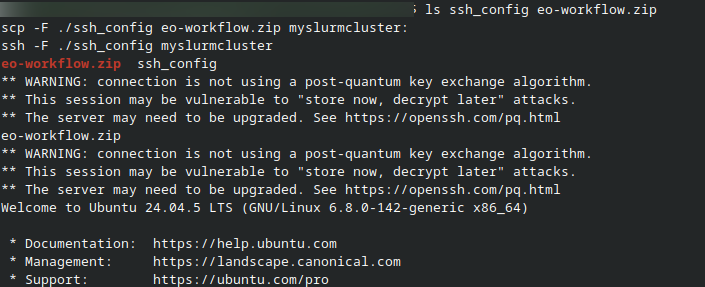
Your prompt is now hpc@controller001:~$. Extract the transferred ZIP and run the remaining setup and job commands on the controller as hpc:
unzip eo-workflow.zip
cd ~/eo-workflow
df -h /home/hpc
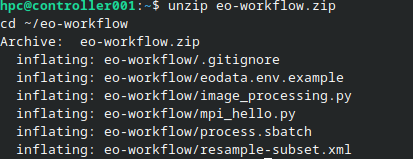
The extracted directory is available on every worker through the shared /home mount. It contains:
File |
Purpose |
|---|---|
|
Checks that two MPI ranks run on two different workers. |
|
Lists products, distributes downloads, and runs SNAP. |
|
Defines the SNAP processing operations. |
|
Requests the two workers and launches the MPI job. |
|
Provides the endpoint, bucket, and product selection settings. |
Step 2: Install SNAP in the shared home directory
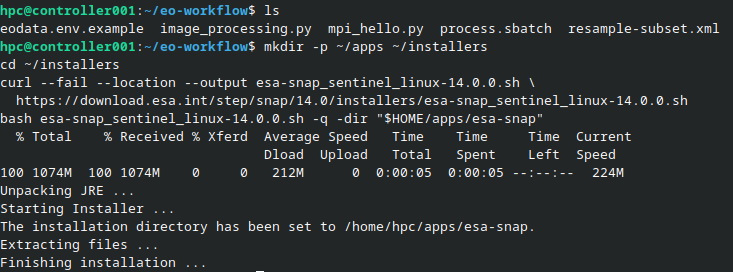
Download the installer and install SNAP as hpc:
mkdir -p ~/apps ~/installers
cd ~/installers
curl --fail --location --output esa-snap_sentinel_linux-14.0.0.sh \
  https://download.esa.int/step/snap/14.0/installers/esa-snap_sentinel_linux-14.0.0.sh
bash esa-snap_sentinel_linux-14.0.0.sh -q -dir "$HOME/apps/esa-snap"
Set the maximum Java heap to 4 GiB in gpt.vmoptions:
sed -i '/^-Xmx/d' ~/apps/esa-snap/bin/gpt.vmoptions
printf '\n-Xmx4G\n' >> ~/apps/esa-snap/bin/gpt.vmoptions
Check SNAP on both workers, giving each process its own writable directory under /tmp for settings, native libraries, and temporary files:
srun --nodes=2 --ntasks=2 --ntasks-per-node=1 \
  --cpus-per-task=2 --mem=6G --label bash -c '
    snap_work=$(mktemp -d /tmp/snap-diag.XXXXXX) || exit 1
    exec /home/hpc/apps/esa-snap/bin/gpt \
      -J-Dsnap.userdir="$snap_work" \
      -J-Djava.io.tmpdir="$snap_work" --diag
  '
cd ~/eo-workflow
Each worker must report SNAP 14.0.0 without native-library extraction errors. The -J-D options set the directory paths before SNAP starts. The processing script also creates a separate temporary directory for each SNAP process, while the installation and output files remain in the shared home directory.
The check and batch job reserve 2 CPUs and 6 GiB RAM per worker. SNAP uses a 4 GiB Java heap and a 512 MiB tile cache within that heap. The processing script clears the tile cache after each output row of tiles.
Step 3: Configure EODATA access
On controller001, configure the hpc account with your personal EODATA keys from Tenant Manager > Configuration > EODATA Access.
Create the AWS credentials directory and open the credentials file:
mkdir -p ~/.aws
chmod 700 ~/.aws
touch ~/.aws/credentials
chmod 600 ~/.aws/credentials
nano ~/.aws/credentials
Add an eodata profile using your EODATA access key and secret key. Keep any existing profiles:
[eodata]
aws_access_key_id = YOUR_EODATA_ACCESS_KEY
aws_secret_access_key = YOUR_EODATA_SECRET_KEY
Copy and edit the workflow settings:
cp eodata.env.example eodata.env
nano eodata.env
The CODE-DE-Lab archive already sets EODATA_ENDPOINT to https://eodata.code-de.org and AWS_DEFAULT_REGION to s3.fra1-3.cloudferro.com. It selects the eodata credential profile and two Sentinel-2 Level-1C products from 1 October 2022. Keep these values when copying the example to eodata.env.
# EODATA endpoint and credential profile from Step 3.
export AWS_PROFILE=eodata
export AWS_DEFAULT_REGION=s3.fra1-3.cloudferro.com
export EODATA_ENDPOINT="https://eodata.code-de.org"
export EODATA_BUCKET=eodata
export EODATA_PREFIX=Sentinel-2/MSI/L1C_N0500/2022/10/01/
export MAX_PRODUCTS=2

# Use the private subnet created by Terraform for MPI traffic.
export OMPI_MCA_btl_tcp_if_include=192.168.50.0/24
export OMPI_MCA_oob_tcp_if_include=192.168.50.0/24
The two OMPI_MCA settings keep MPI data and control traffic on the cluster’s private 192.168.50.0/24 network. Both values must match subnet_cidr in the cluster’s terraform.tfvars. EODATA downloads continue to use the configured S3 endpoint.
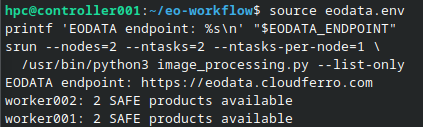
Load the settings and check EODATA access from each worker:
source eodata.env
printf 'EODATA endpoint: %s\n' "$EODATA_ENDPOINT"
srun --nodes=2 --ntasks=2 --ntasks-per-node=1 \
  /usr/bin/python3 image_processing.py --list-only
Each worker prints its hostname and the number of available SAFE products, up to two. The credentials file is shared with the workers through /home/hpc.
Step 4: Check MPI across the workers
Load the settings and run the supplied MPI check inside a SLURM allocation:
source eodata.env
salloc --nodes=2 --ntasks=2 --ntasks-per-node=1 --time=00:05:00 \
  mpirun -np 2 --map-by ppr:1:node /usr/bin/python3 mpi_hello.py
The output must contain ranks 0 and 1 on worker001 and worker002, each reporting MPI exchange passed. These messages appear after the workers exchange data. The command must finish and return to the controller prompt before you submit the processing job.
Step 5: Submit the processing job
The workflow archive already includes process.sbatch. Submit this file to SLURM with sbatch; do not paste its contents into the terminal. The file requests one MPI rank on each worker, with two CPUs and 6 GiB RAM per rank. Its contents are shown here for reference:
#!/usr/bin/env bash
#SBATCH --job-name=sentinel2-mpi
#SBATCH --partition=compute
#SBATCH --nodes=2
#SBATCH --ntasks-per-node=1
#SBATCH --cpus-per-task=2
#SBATCH --mem=6G
#SBATCH --time=02:00:00
#SBATCH --output=slurm-%j.out

set -euo pipefail
cd "$SLURM_SUBMIT_DIR"
: "${EODATA_ENDPOINT:?Source eodata.env before submitting this job}"
export OMP_NUM_THREADS="$SLURM_CPUS_PER_TASK"
export OPENBLAS_NUM_THREADS=1

# Open MPI launches one rank per worker inside this SLURM allocation.
printf 'Checking MPI communication between workers...\n'
mpirun -np "$SLURM_NTASKS" --map-by "ppr:1:node:PE=$SLURM_CPUS_PER_TASK" \
    /usr/bin/python3 mpi_hello.py
printf 'MPI check finished. Starting Sentinel-2 download and processing...\n'
mpirun -np "$SLURM_NTASKS" --map-by "ppr:1:node:PE=$SLURM_CPUS_PER_TASK" \
    /usr/bin/python3 image_processing.py --workdir "$PWD/runs/$SLURM_JOB_ID"
Run these commands on controller001 as hpc to submit the job. SLURM sets SLURM_SUBMIT_DIR and the other job variables when it runs the batch script:
cd /home/hpc/eo-workflow
source eodata.env
sbatch process.sbatch
squeue -u hpc

sbatch returns a job ID. Use that value in place of JOB_ID below to follow the log:
tail -F slurm-JOB_ID.out
The log reports the MPI check, product selection, download progress, and the start of SNAP processing. Each worker prints the path to its detailed SNAP log under runs/JOB_ID/logs. The job performs these operations:
Rank 0 lists up to two SAFE products and distributes the list across the two ranks.
Each rank downloads its assigned products using boto3.
SNAP reads each product, resamples it to 20 metres, and keeps bands B2, B3, and B4.
Each rank writes the GeoTIFF results to
runs/JOB_ID/resultsin the shared workflow directory.
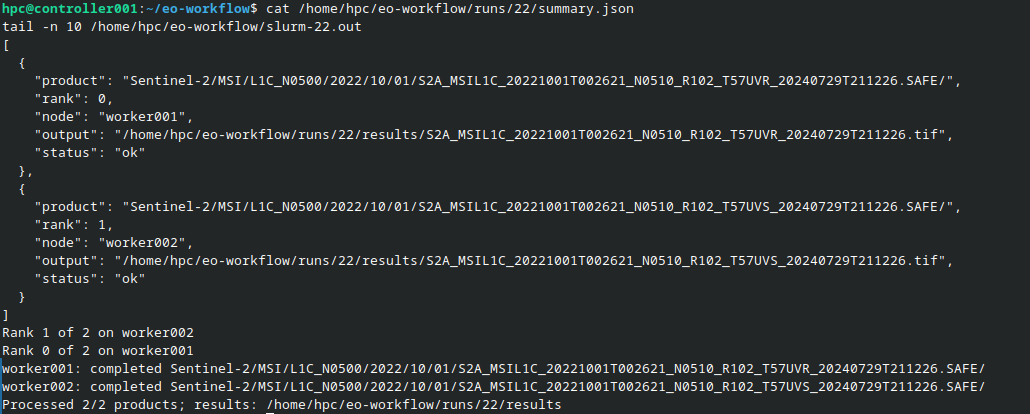
With two input products, each worker processes one product. The final log message reports the number completed, for example Processed 2/2 products. Press Ctrl+C to stop following the log; this leaves the submitted job running.
Step 6: Inspect and download the results
After the completion message, inspect the output files and processing summary on the controller:
ls -lh runs/JOB_ID/results/
cat runs/JOB_ID/summary.json
There is one GeoTIFF per successfully processed product. The summary records the worker, output path, and success or failure for each input. SNAP’s per-product logs are stored in runs/JOB_ID/logs.
Return to your local terminal in the slurm-terraform directory and download the results:
exit
scp -F ./ssh_config -r \
  myslurmcluster:/home/hpc/eo-workflow/runs/JOB_ID/results ./sentinel2-results
Open a GeoTIFF in SNAP Desktop and create an RGB view using B4 for red, B3 for green, and B2 for blue.
Discussion
The workers process independent Sentinel-2 products. MPI distributes the work and collects the outcome; SNAP uses the CPUs assigned to each rank to process one product at a time. The shared home directory holds the downloaded products and results.
A failed download or SNAP process makes the batch job fail and records the product error in the summary. Check slurm-JOB_ID.out and the per-product logs before submitting another job. Each submission uses a separate directory named after its job ID.
What to do next
After downloading the results, remove the cluster using the cleanup procedure in Create a SLURM Cluster with Terraform.