Help desk and support
Contact Support through the public CODE-DE-Lab website when you cannot sign in. If you have Dashboard access, create and manage support requests through Tickets instead.
Prerequisites
No. 1 Appropriate support path
Determine whether you can sign in to the CODE-DE-Lab Dashboard at https://tenant-manager.code-de.org. If the problem is only a forgotten password and you still have access to the registered email address and configured authenticator, try Forgotten Password first. Use the public support form when account access cannot be recovered, for example after losing the device and backup secret used for TOTP; otherwise, sign in and use Tickets.
No. 2 Issue details and supporting material
Prepare a concise summary and a description that identifies the affected service or resource, explains what happened, and includes relevant error messages or times. For a Dashboard service request, you can attach up to ten files; each file may be up to 10 MB and must use one of the formats listed in the ticket form. Keep the description and any useful screenshots or files ready before contacting Support.
Contact Support without Dashboard access
Open the CODE-DE-Lab support page while signed out.
The page displays the public contact form. It also lists email and telephone contact options if you cannot use the form.
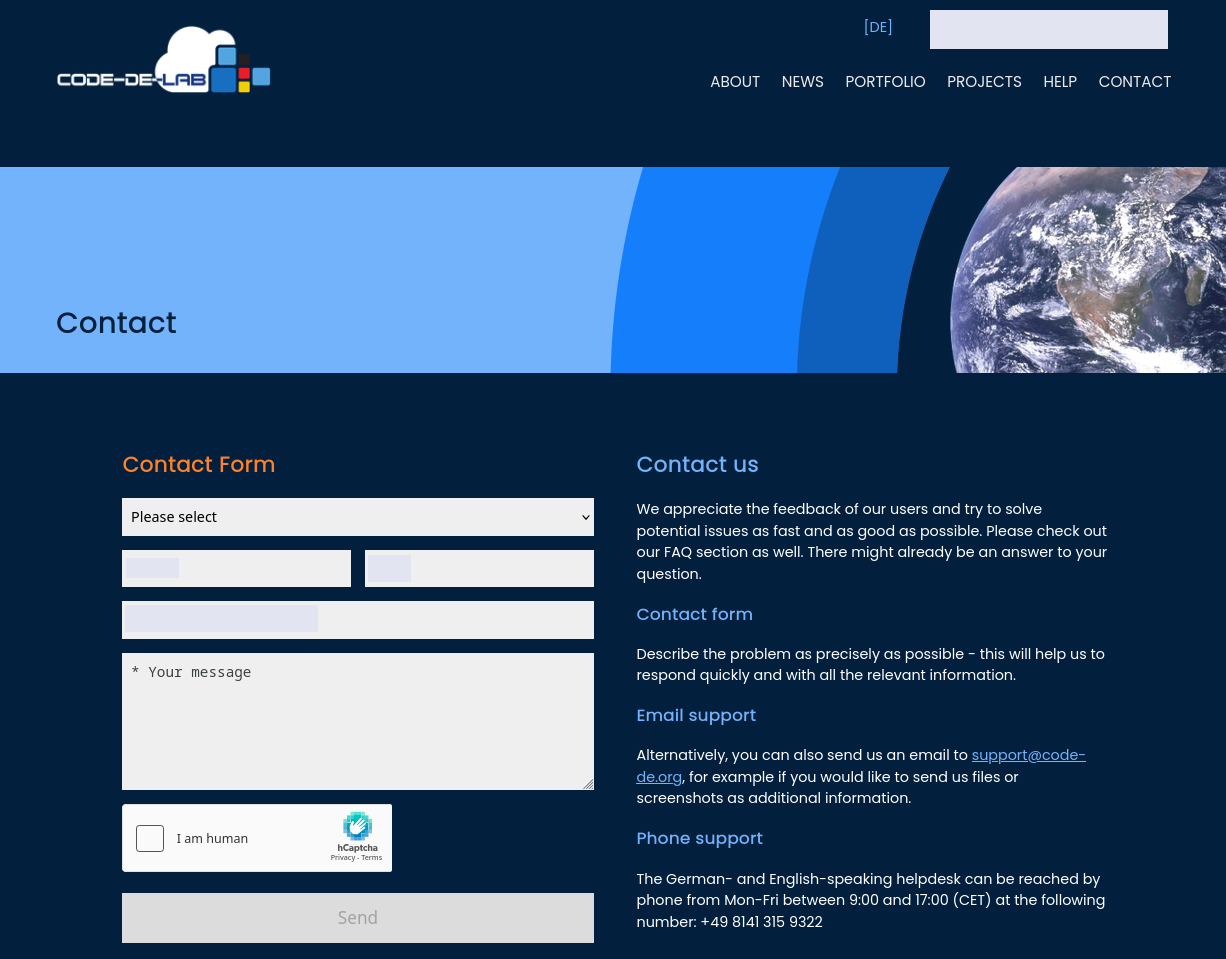
Public contact form on the CODE-DE-Lab website
Select the appropriate subject, enter your name and email address, and describe the problem as precisely as possible.
Complete the CAPTCHA and select Send.
Support replies by email after processing the message.
Use tickets with Dashboard access
Sign in to the CODE-DE-Lab Dashboard.
In the left sidebar, under Support, select Tickets.
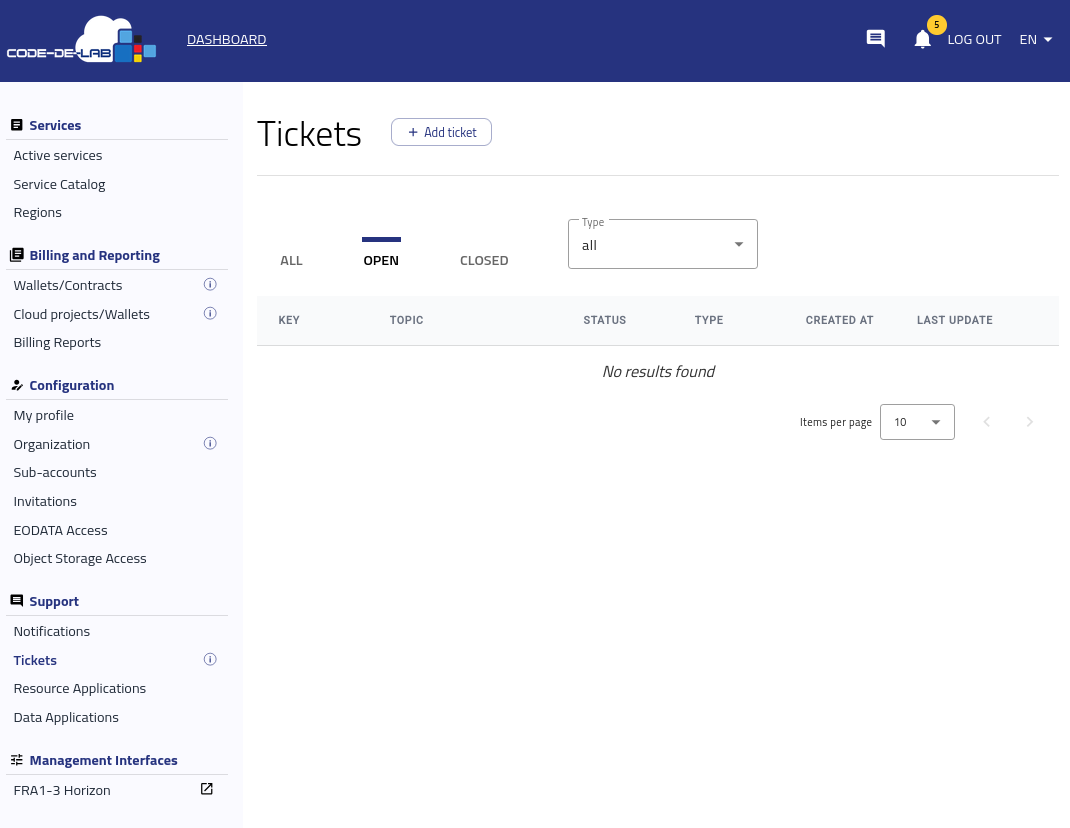
Support tickets in the Dashboard
Use the tabs and filters to find an existing ticket:
ALL displays all tickets.
OPEN displays tickets that are still active.
CLOSED displays completed tickets.
Type filters the list by request type.
Each row identifies the ticket by KEY, TOPIC, STATUS, TYPE, CREATED AT, and LAST UPDATE. Open the actions menu on the right side of a row to view the ticket details or add a comment.
Create a ticket
On the Tickets page, select + Add ticket.
Select the required request type: Phone Call or Service Request.
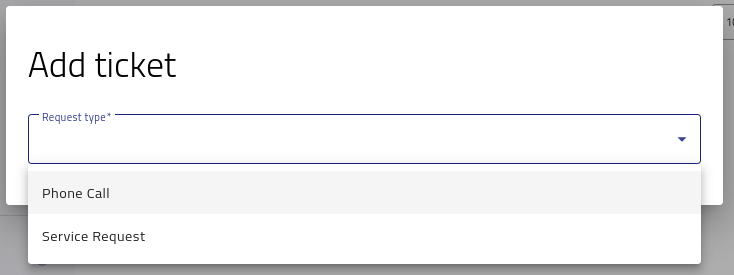
Selecting the support request type
For a Service Request, enter a Summary and Description. Attach supporting files when they help explain the issue.
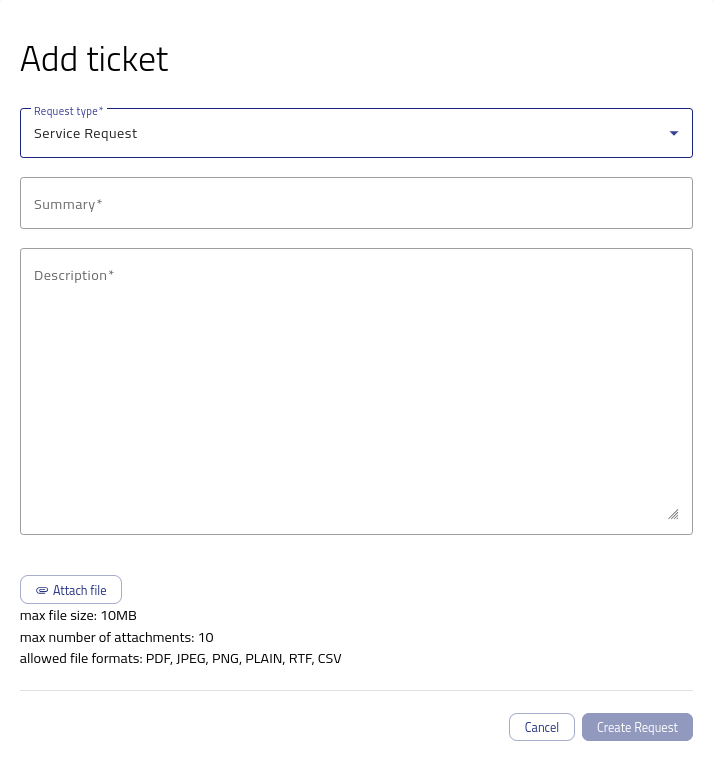
Completing a service request
Select Create Request.
The Request created notification appears, and the new ticket is listed under OPEN with its key, status, type, and timestamps.
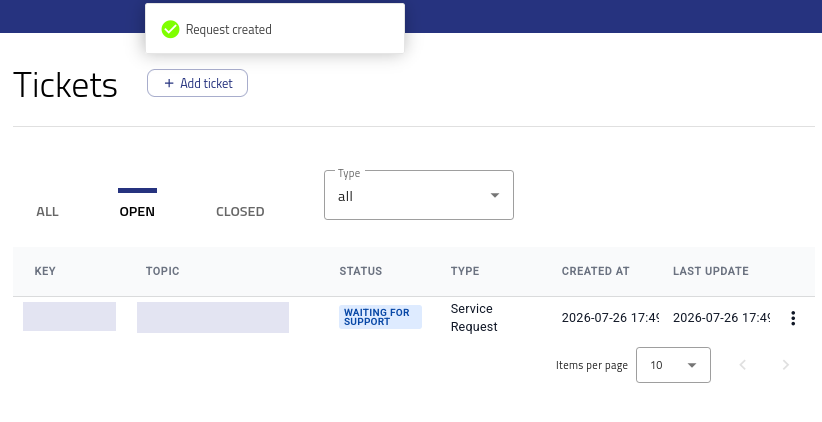
Newly created support ticket
You will then receive an email confirming that your request has been received and is being processed:
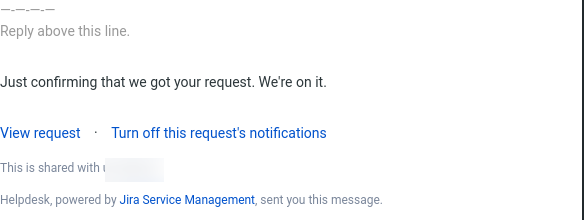
Email confirmation that the ticket has been entered into the system
What to do next
Monitor the ticket under OPEN and use its actions menu to provide additional information when Support requests it.
For new cloud resources or a change to an existing allocation, submit a resource application instead of a support ticket by following Submitting Resource Applications on CODE-DE-Lab.
After account access is restored, review your password and notification settings in Editing profile.