Submitting Resource Applications on CODE-DE-Lab
The Resource Applications page in the main menu is used to request cloud resources or access to additional services on CODE-DE-Lab. The Resources screen is the starting point for creating a new resource application.
Prerequisites
No. 1 Active account and Dashboard access
Resource applications are submitted through the Dashboard at https://tenant-manager.code-de.org, which requires an active CODE-DE-Lab account and a web browser. If necessary, create and activate the account by following Registration and Setting up an Account, then sign in before opening Resource Applications.
No. 2 Organization membership and admin permission
Only users with administrator permission within an organization can submit resource applications. Follow Adding and editing an organization if you still need to create or join one, and consult Tenant Manager users and roles on CODE-DE-Lab for the role requirements. Continue with the admin role active in the organization for which you are requesting resources.
No. 3 Resource request details
Prepare the request purpose, desired start date, time period, short project title, project objective, and a contact phone number. An extension or change also requires the identifier of the previous request.
No. 4 Supporting files
For an Individual Package, use the CODE-DE-Lab resource configurator to define the environment and export the completed configuration as a CSV or PDF file. Gather this export and any other supporting files before starting; each attachment must use an accepted format and must not exceed 10 MB.
Open Resource Applications
Open Resource Applications from the main menu, then click + Create Request in the top centre of the Resources screen.
Select the resource application
The Cloud Resource Request screen presents the resource packages and additional services available through CODE-DE-Lab. Free cloud resources are offered to public authorities and research institutions, subject to authorisation by the Deutsche Raumfahrtagentur im DLR e.V. (German Space Agency).
You can request a predefined package, configure an individual set of cloud resources, or request access to one of the additional services. The packages can be combined, but each one must be requested separately.
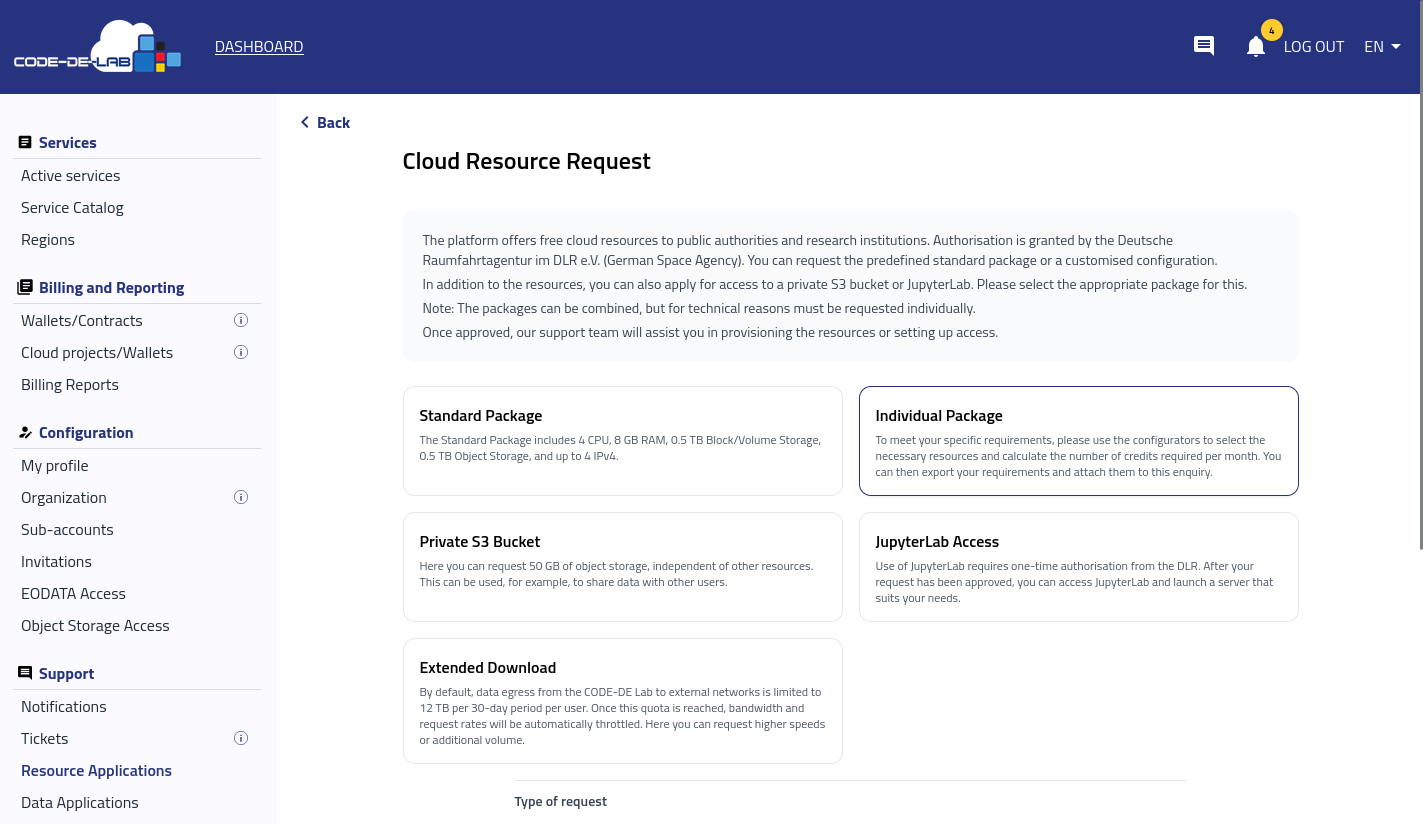
Selecting a package or service on the Cloud Resource Request screen.
Select the package or service that corresponds to the resources you need:
Standard Package is a predefined package with one VM that provides 4 vCores and 8 GB RAM. The package also includes 0.5 TB Block/Volume Storage, 0.5 TB Object Storage, and up to 4 IPv4 addresses.
Individual Package allows you to configure a customised cloud environment with or without a GPU. Use the configuration prepared in the prerequisites to specify the required environment and corresponding number of credits per month.
The configurator provides two tabs:
Without GPU groups the available resources under Flavors, Object Storage, Block Storage, and Additional Services. The flavor table is further divided into the
eo1a,eo2a,hma,hmad, andhmawfamilies;hmawflavors are available only with Windows.With GPU groups the available resources under GPU A6000 (virtualised), GPU A100 (Pass-Through), Object Storage, Block Storage, and Additional Services.
In both tabs, the tables show the product, its description, the number of credits per month, and the selected quantity. Attach the CSV or PDF configuration prepared earlier to the request.


Private S3 Bucket provides 50 GB of object storage independently of the other cloud resources. It can, for example, be used to share data with other users.
JupyterLab Access is required because JupyterLab is no longer freely available under the new security structure. After one-time authorisation by DLR, you can access JupyterLab and launch a server according to your requirements.
Extended Download is intended for cases in which the standard data-egress allowance is not sufficient. By default, data egress from CODE-DE-Lab to external networks is limited to 12 TB per user within a 30-day period. After this quota is reached, bandwidth and request rates are automatically throttled. Select this option to request higher transfer speeds or additional transfer volume. Refer to the portfolio for additional information.
Note
For organisational purposes, submit a separate request for a GPU.
Click the required package or service to open its request form. In the next step, provide information about your project and any other relevant details. The more detail you provide, the easier it is to review the application.
Fill in the request
The contents of the request form depend on the selected resource application, so not all fields are displayed for every request type. Required fields are marked with an asterisk.

Filling in and submitting a resource application.
Under Type of request, select the purpose of the application:
New for a new resource or access request.
Extension to extend an existing allocation.
Change to modify an existing allocation.
Under Parameters, specify the requested Time Period in months and the Desired start date.
In the Details section, enter a Short project title and describe the Objective of the project. Provide your Phone number and use Additional remarks for any information that may help Support process the application.
If the application refers to an earlier resource request, enter its identifier in Previous request id.
Attach supporting files
Use Attach file when supporting documentation is required or when you need to provide an exported resource configuration, for example for an Individual Package.
The following attachment limits apply:
maximum file size: 10 MB
maximum number of attachments: 10
allowed file formats: PDF, JPEG, PNG, PLAIN, RTF, and CSV
Send the request
Review the information entered in the form and any attached files, then click Send Request. A confirmation message appears after the request has been created.
Confirmation that the resource application has been created.
You will also receive an email message like this:

Email confirmation that the request has been received.
From that message, you can view the request or stop receiving the notifications about that request.
What happens after submission
Sending an application automatically creates a ticket. Until the request is approved, this ticket is used for further communication, including:
enquiries from the DLR-RFA
approval information
provisioning information
You can view all open and closed tickets in the Support section. This includes resource applications, data applications, and support tickets.
Note
Do not use an application ticket to report a support issue. Create a separate support ticket instead.
Review submitted requests
Return to Resource Applications to view submitted requests on the Resources screen.
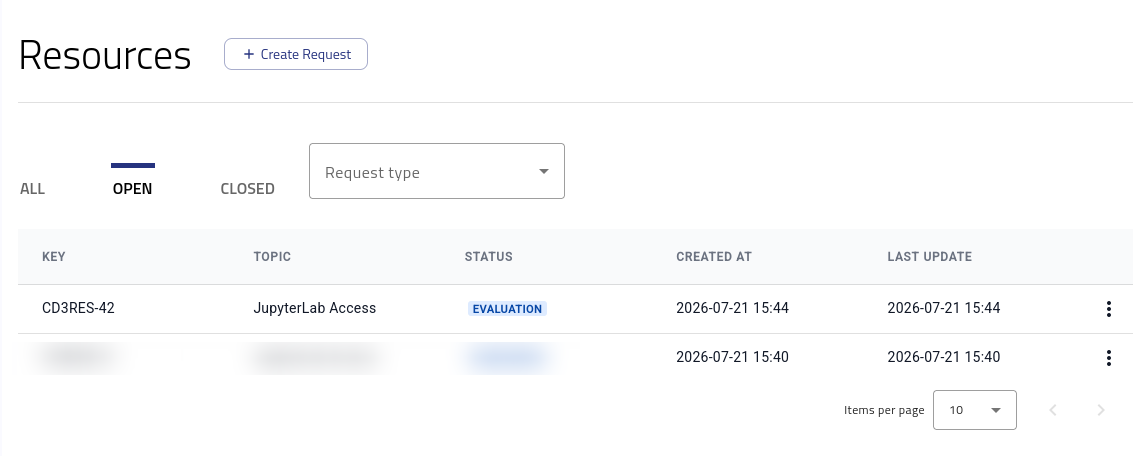
List of submitted resource applications.
The ALL, OPEN, and CLOSED tabs filter requests by status. To narrow the list by request type, open the Request type dropdown menu and select one of the five available resource applications:
Extended Download
JupyterLab Access
Private S3 Bucket
Individual Package
Standard Package

Filtering submitted resource applications by request type.
To inspect an individual request, open the three-dot menu on the right side of its entry and select Show Details.
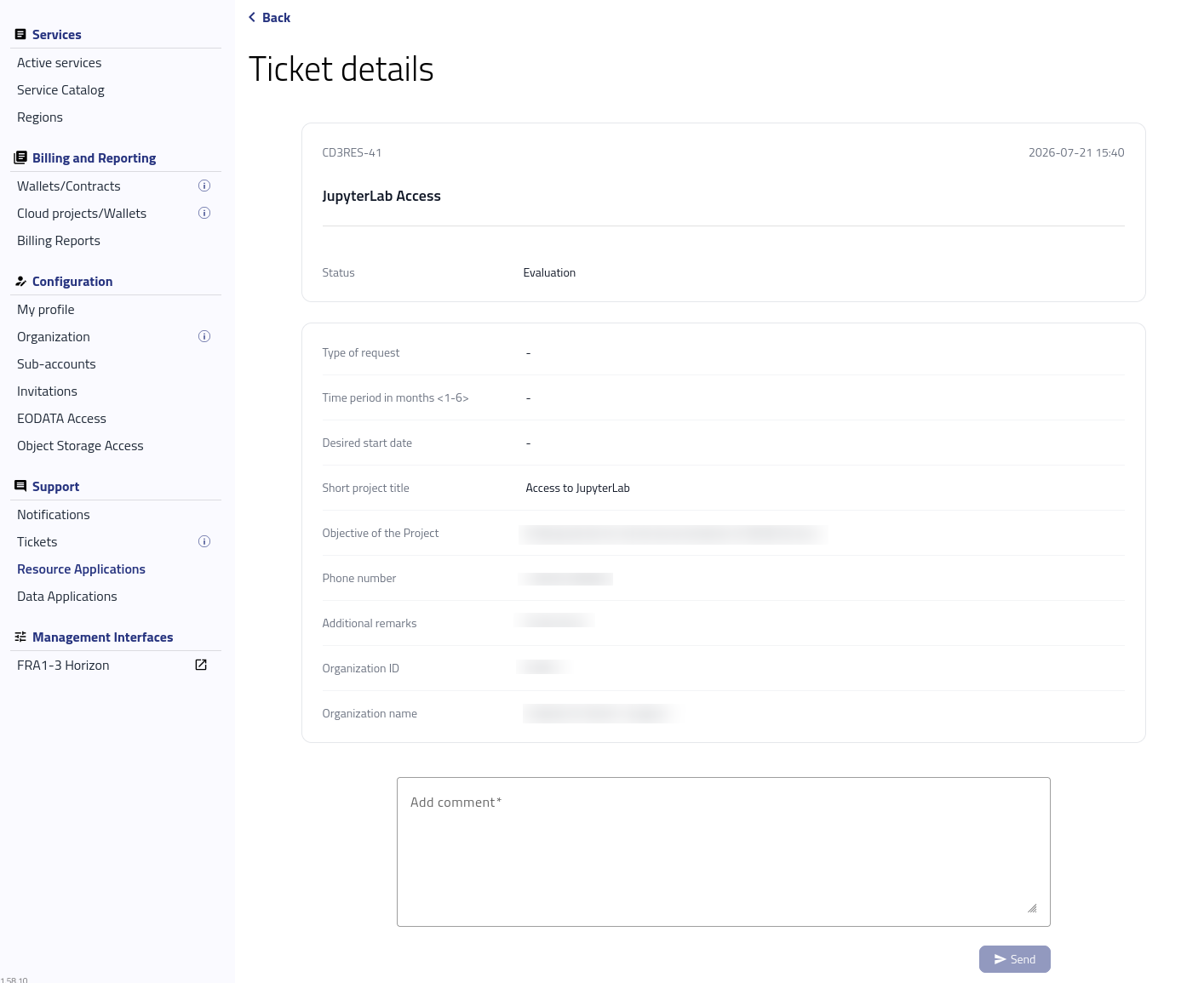
Viewing the current state of a request and adding a comment.
The Ticket details screen shows the current state of the request. You can also add a comment when additional information is needed. Enter the comment and click Save. The new comment then appears on the same Ticket details screen.
After approval, keep following the application ticket until Support confirms that the requested resources have been provisioned or the requested access has been enabled.
What to do next
The next step depends on the approved application type.
For a Standard Package or Individual Package, use Accounts and Projects Management on CODE-DE-Lab to verify the relevant project in FRA1-3 and review any applicable wallet assignment before using the allocated resources.
For a Private S3 Bucket, wait until Private Object Storage appears as ENABLED in the Service Catalog, then follow Private object storage access in CODE-DE-Lab to create the FRA1-3 access key and secret key and record the S3 endpoint.
For JupyterLab Access or Extended Download, follow the provisioning instructions provided through the application ticket.