Tenant Manager users and roles on CODE-DE-Lab
Tenant Manager uses the roles admin, member+, and member to control access to organization functions and services. The assigned role determines whether a user can manage the organization, access billing functions and Object Storage, or work with OpenStack through Horizon.
Prerequisites
No. 1 Active account and organization membership
Role information and organization users are managed through the CODE-DE-Lab Dashboard at https://tenant-manager.code-de.org. If necessary, complete Registration and Setting up an Account and Adding and editing an organization, then sign in with the relevant organization active.
No. 2 Administrator access and target user
The user-management and role-assignment examples require the admin role. Confirm that the target user already belongs to the organization; when a new member must be added first, follow Invite a new user to your organization and wait until the join request has been approved.
No. 3 Existing OpenStack project
Assigning a member+ user in Horizon requires an existing OpenStack project and administrator access to that project. Use Accounts and Projects Management on CODE-DE-Lab to identify the target project, then have its name and the intended OpenStack project role ready for the final procedure.
What this article covers
The difference between Tenant Manager and OpenStack roles.
The permissions available to admin, member+, and member users.
Tenant Manager and OpenStack access provided by each role.
How to give a member+ user access to an OpenStack project.
Tenant Manager and OpenStack roles
Tenant Manager roles control access to the organization and its services. OpenStack has a separate role system that controls permissions within OpenStack projects and services.
Both admin and member+ users can authenticate to OpenStack, but they have different permissions in Horizon. Access to an individual OpenStack project is managed separately through project membership and OpenStack project roles. A member user has basic Tenant Manager access and cannot use OpenStack.
Tenant Manager roles
The three Tenant Manager roles provide the following levels of access:
- admin
Provides full organization administration. An admin can manage sub-accounts and invitations, access billing and wallet functions, use Object Storage Access, request resources, and access OpenStack.
- member+
Provides access to OpenStack and Object Storage Access without organization administration or billing permissions. A member+ user cannot manage sub-accounts or invitations.
- member
Provides basic access to Tenant Manager. A member can use common services, support functions, EODATA Access, and application pages, but cannot use Object Storage Access or OpenStack.
Tenant Manager options by role
In the interface reviewed for this article, the following options are visible to all three roles:
Menu group |
Available options |
|---|---|
Services |
Active services, Service Catalog, Regions |
Billing and Reporting |
Billing Reports |
Configuration |
My profile, Organization, EODATA Access |
Support |
Notifications, Tickets, Resource Applications, Data Applications |
Management Interfaces |
FRA1-3 Horizon |
The options that differ between roles are:
Menu option |
admin |
member+ |
member |
|---|---|---|---|
Wallets/Contracts |
Yes |
No |
No |
Cloud projects/Wallets |
Yes |
No |
No |
Sub-accounts |
Yes |
No |
No |
Invitations |
Yes |
No |
No |
Object Storage Access |
Yes |
Yes |
No |
The admin role provides organization-management and billing functions. The member+ role provides OpenStack and Object Storage Access without these administrative functions, while member provides basic Tenant Manager access only.
Note
FRA1-3 Horizon is visible under Management Interfaces for all three roles. However, the member role alone does not provide access to OpenStack.
Managing organization users
Organization management is available to admin users. After logging into https://tenant-manager.code-de.org, select Sub-accounts from the left sidebar to view users belonging to the organization and manage their access.
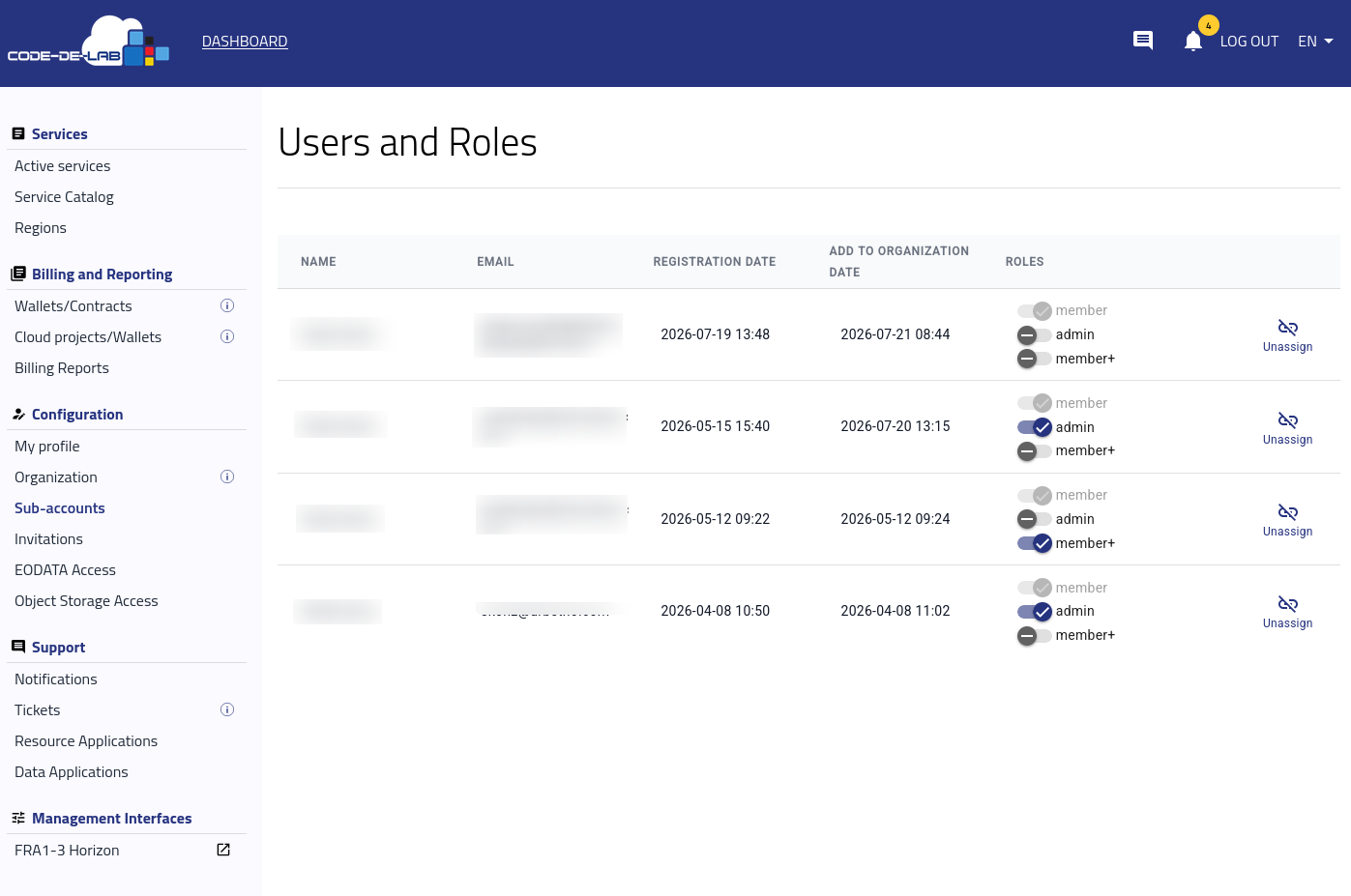
Use Invitations to invite additional users to the organization.
Choose the Tenant Manager role according to the access the user requires:
Use admin for users who need organization, billing, user-management, and OpenStack administration.
Use member+ for users who need OpenStack and Object Storage Access without organization administration.
Use member for users who need basic Tenant Manager access only.
Resource applications
The Resource Applications page is visible to all three roles. An appropriate quota must be assigned before resources in a virtual processing environment can be used.
Submitting an organization resource application requires administrator permissions. Users invited to resources belonging to another user can access them according to the permissions granted to them.
Available resource application types include:
Extended Download
JupyterLab Access
Private S3 Bucket
Individual Package
Standard Package
Object Storage Access
Object Storage Access is available to admin and member+ users. Users with only the member role do not have this option.
This is one of the main differences between member+ and member. The member+ role provides access to OpenStack and Object Storage without the organization-management privileges of an admin.
OpenStack access by Tenant Manager role
The interface reviewed for this article showed the following OpenStack access for each Tenant Manager role:
Tenant Manager role |
OpenStack access |
Identity options |
|---|---|---|
admin |
Yes |
Domains, Projects, Users, Groups, Roles, Application Credentials |
member+ |
Yes |
Domains, Projects, Application Credentials |
member |
No |
OpenStack cannot be accessed with this role alone. |
An admin can use the Identity functions required to manage users, groups, roles, and projects. A member+ user can work with projects and application credentials but cannot access Users, Groups, or Roles.
Assigning member+ in addition to admin does not provide additional Identity options beyond those already available to admin.
The permissions available within a specific OpenStack project also depend on the OpenStack project roles assigned to the user.
OpenStack access for member users
Although FRA1-3 Horizon is visible to a member under Management Interfaces, the member role does not provide the authentication required to enter OpenStack.
Attempting to access Horizon with only the member role results in:
code    401
message "The request you have made requires authentication."
title   "Unauthorized"
The user must have the member+ or admin role to access OpenStack.
OpenStack roles
OpenStack roles are separate from Tenant Manager roles. An admin can view the available OpenStack role definitions by selecting Identity → Roles in Horizon.
In the environment shown here, the Roles page includes general and service-specific roles such as admin, member, reader, creator, heat_stack_owner, magnum_user, manila_user, Kubernetes roles, and load-balancer roles.
The presence of a role on the Roles page does not mean that it is assigned to the logged-in user. Tenant Manager roles determine access to the service, while OpenStack permissions can additionally depend on roles assigned within individual projects.
OpenStack users in Horizon
To view OpenStack users, sign in to Horizon and select Identity → Users:
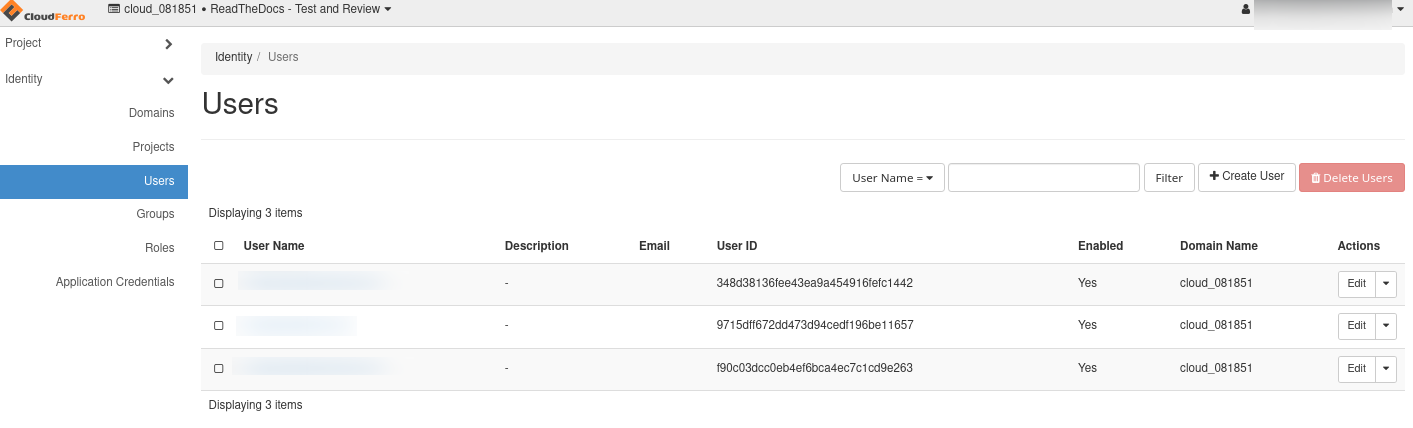
In this example, the Dashboard lists four organization users, while Horizon lists three OpenStack users. The fourth organization user has only the member Tenant Manager role, which does not provide OpenStack access; therefore, that user does not appear in Horizon.
Give a member+ user access to an OpenStack project
The member+ role provides access to OpenStack, while membership in individual OpenStack projects is managed separately.
To add a member+ user to an OpenStack project:
Confirm that the user has the member+ role in Tenant Manager.
Sign in to Horizon at https://identity.cloudferro.com/auth/realms/CODE-DE3/account/ as an admin.
Select Identity → Projects.
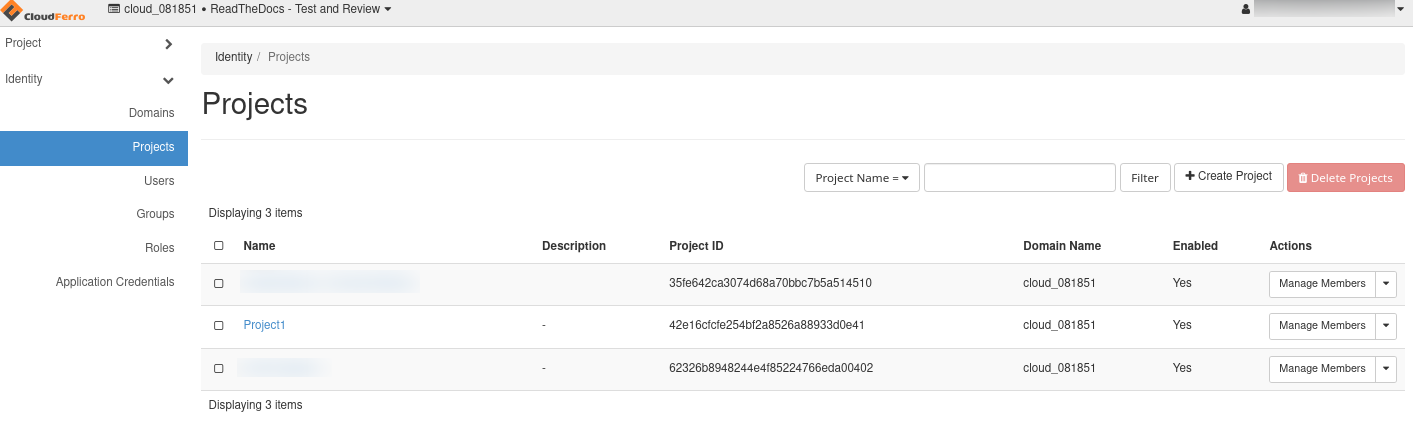
Find the required project and select Manage Members.
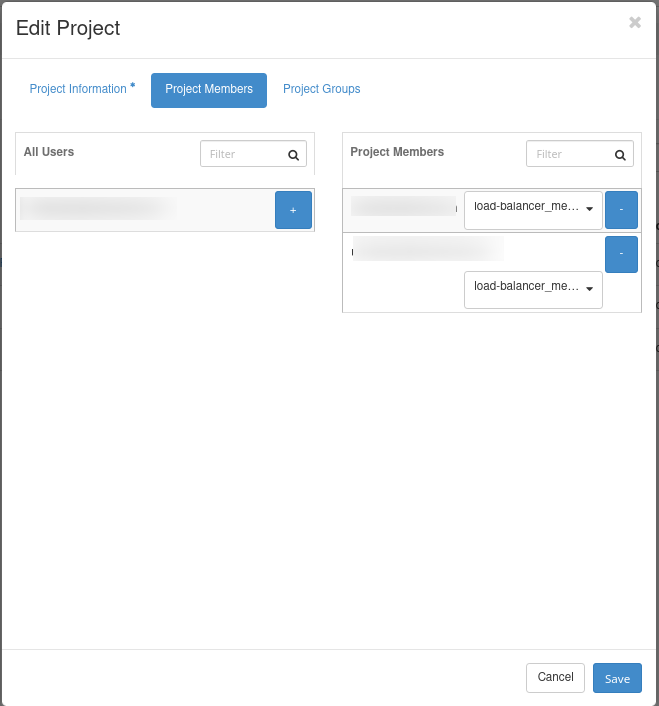
On the Project Members tab, select + next to the user you want to add.
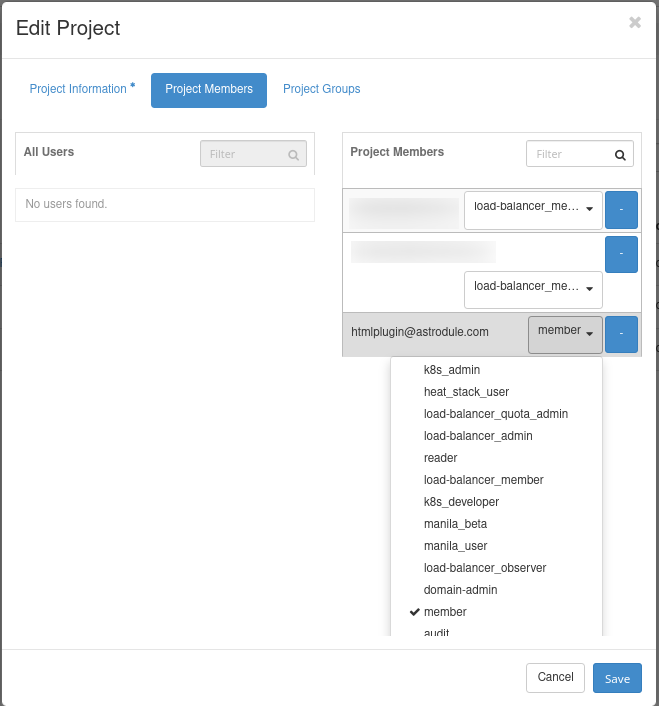
Select the appropriate OpenStack project role and then select Save.
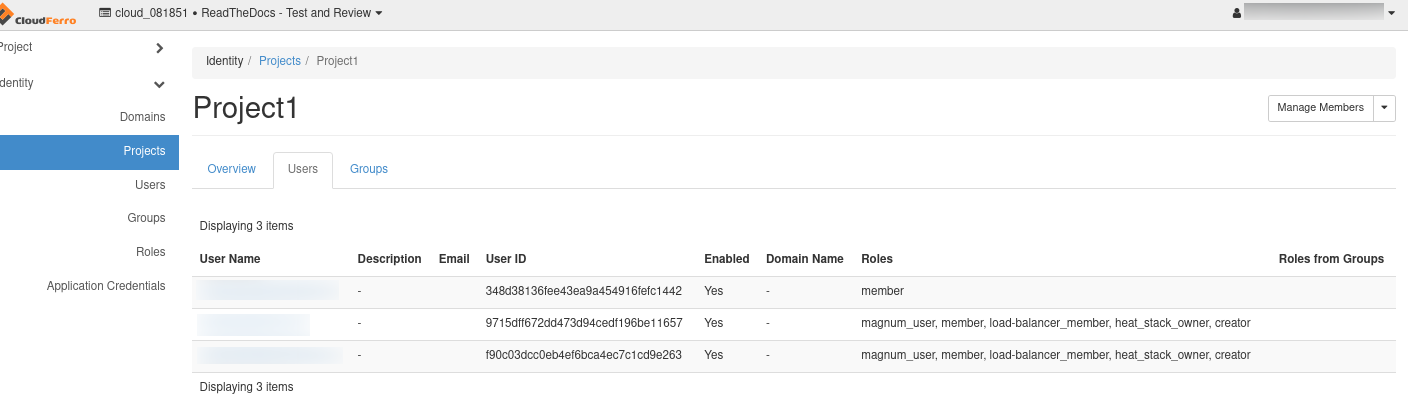
The user can now access the project through Horizon with the permissions provided by the assigned OpenStack project role. In this example, the newly added user receives the member role; assign other roles only when the user requires their additional permissions.
Note
The project shown in the screenshot contains two users with the OpenStack project roles magnum_user, member, load-balancer_member, heat_stack_owner, and creator. These assignments are separate from the users’ Tenant Manager roles.
What to do next
Use Invite a new user to your organization to add another member to the organization, or follow Removing a user from an organization when access must be revoked.
For project creation, wallet assignments, and project-level access checks, continue with Accounts and Projects Management on CODE-DE-Lab.