Invite a new user to your organization
Prerequisites
No. 1 Dashboard access and organization administrator role
Invitations are managed in the CODE-DE-Lab Dashboard at https://tenant-manager.code-de.org. Use an active account with the admin role in the organization that the new user will join; Tenant Manager users and roles on CODE-DE-Lab describes the required permissions.
No. 2 Eligible invitee with an active account
The invitee needs an active CODE-DE-Lab account and must be available to receive the invitation code and submit the join request. If the account has not yet been created, complete Registration and Setting up an Account before generating the invitation.
Important
A user can belong to only one organization at a time.
No. 3 Role and resource-access plan
Decide whether the user should receive the admin, member+, or member role after joining, and identify any resource quota the user will require. Organization membership and resource allocation are separate, so have the intended role and any later resource request ready before approving the join request.
The invitation workflow involves two people: an organization administrator shares an invitation code, the invited user submits a join request, and an administrator approves or rejects that request.

The invitation workflow moves between the organization administrator and the invited user.
Admin: Share an invitation code
Sign in to the CODE-DE-Lab Dashboard at https://tenant-manager.code-de.org.
In the left sidebar, under Configuration, select Invitations.
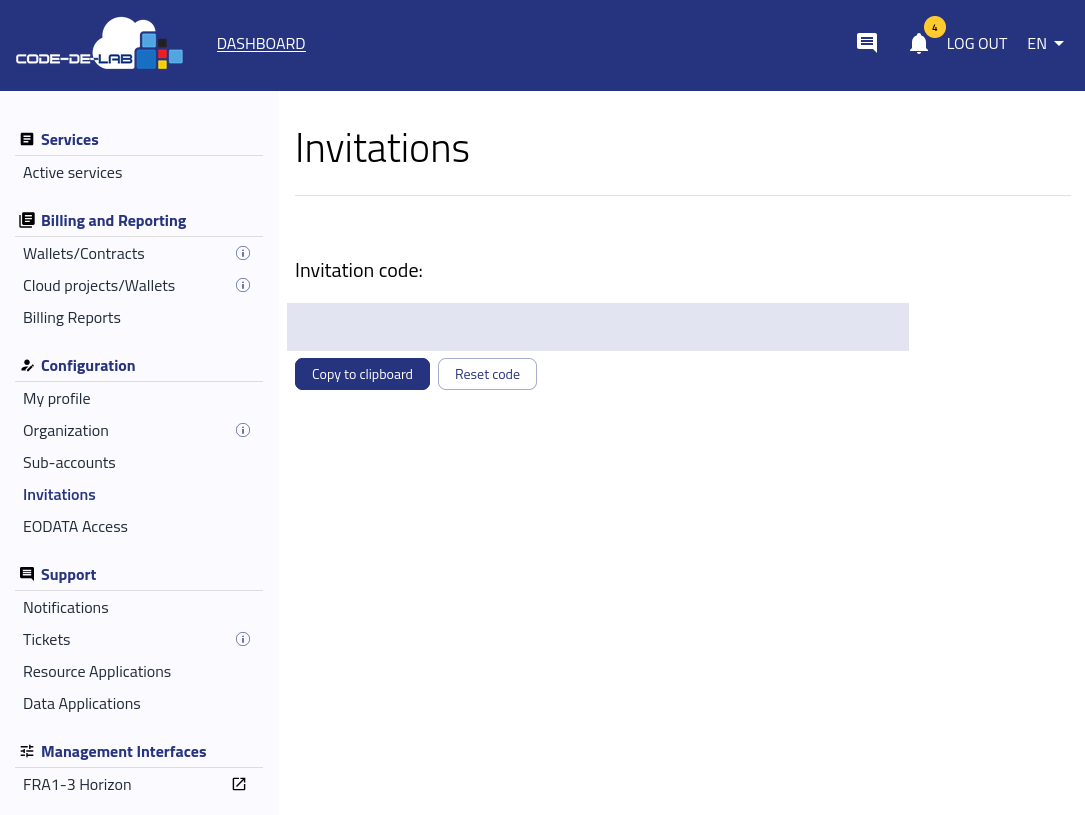
Invitation code on the Invitations page
Select Copy to clipboard, then send the invitation code to the user by email.
User: Submit the join request
The invited user completes the following steps:
Sign in to the CODE-DE-Lab Dashboard.
In the left sidebar, under Configuration, select Organization.
Select Join an Organization and enter the invitation code.
Select Join Organization.
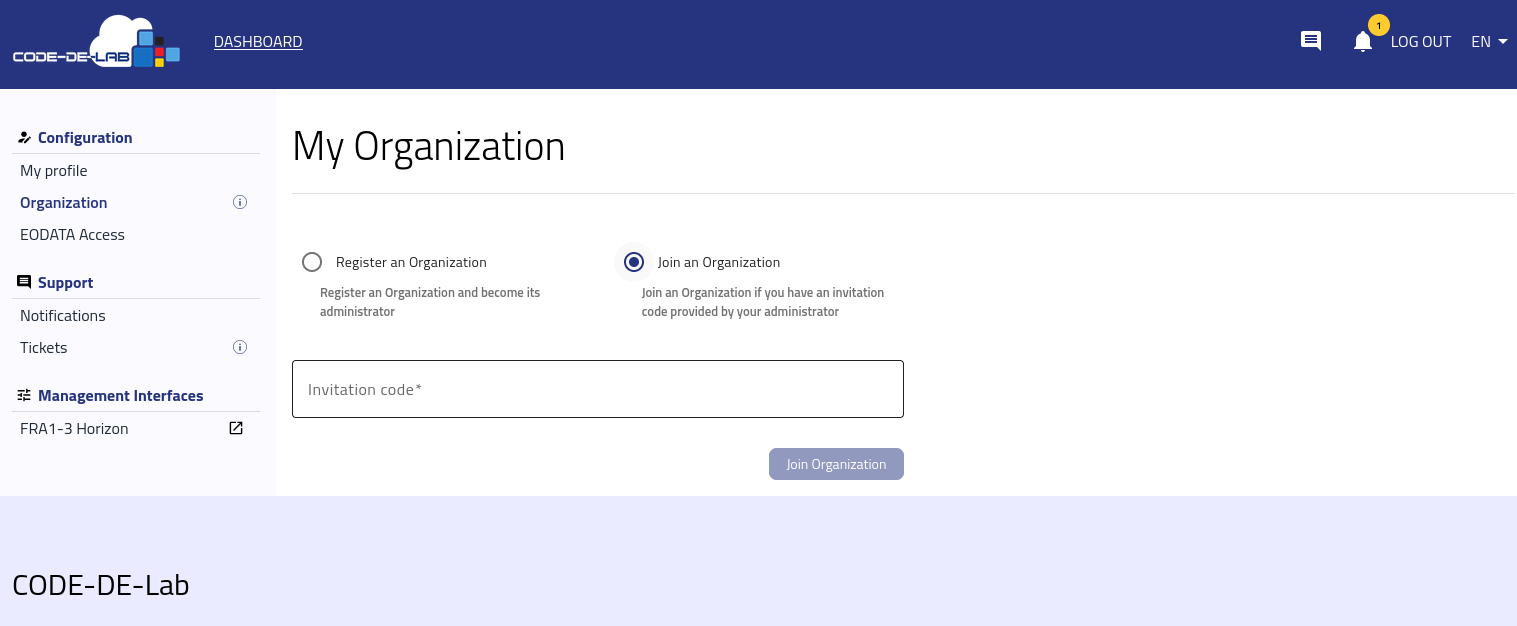
Joining an organization with an invitation code
After submission, the Organization page confirms that the request was submitted and shows that it is awaiting administrator approval.
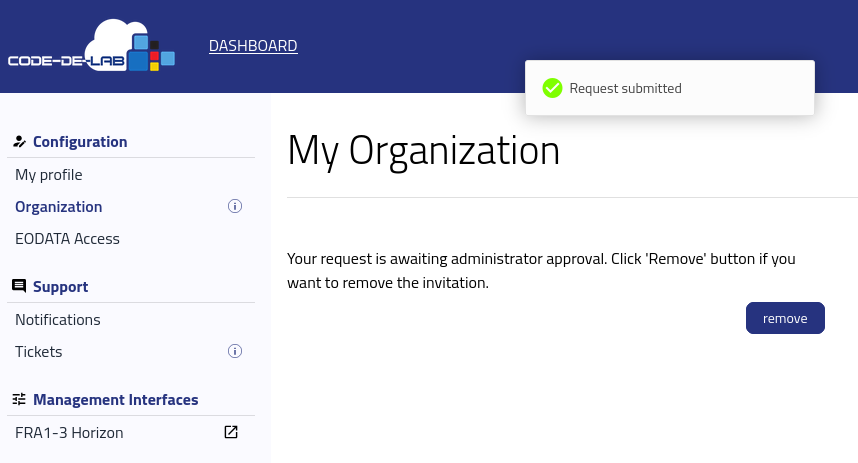
Organization join request awaiting administrator approval
Admin: Approve or reject the join request
An organization administrator completes the following steps:
Return to Invitations in the CODE-DE-Lab Dashboard.
Locate the pending request and select Accept to approve it or Reject to decline it.
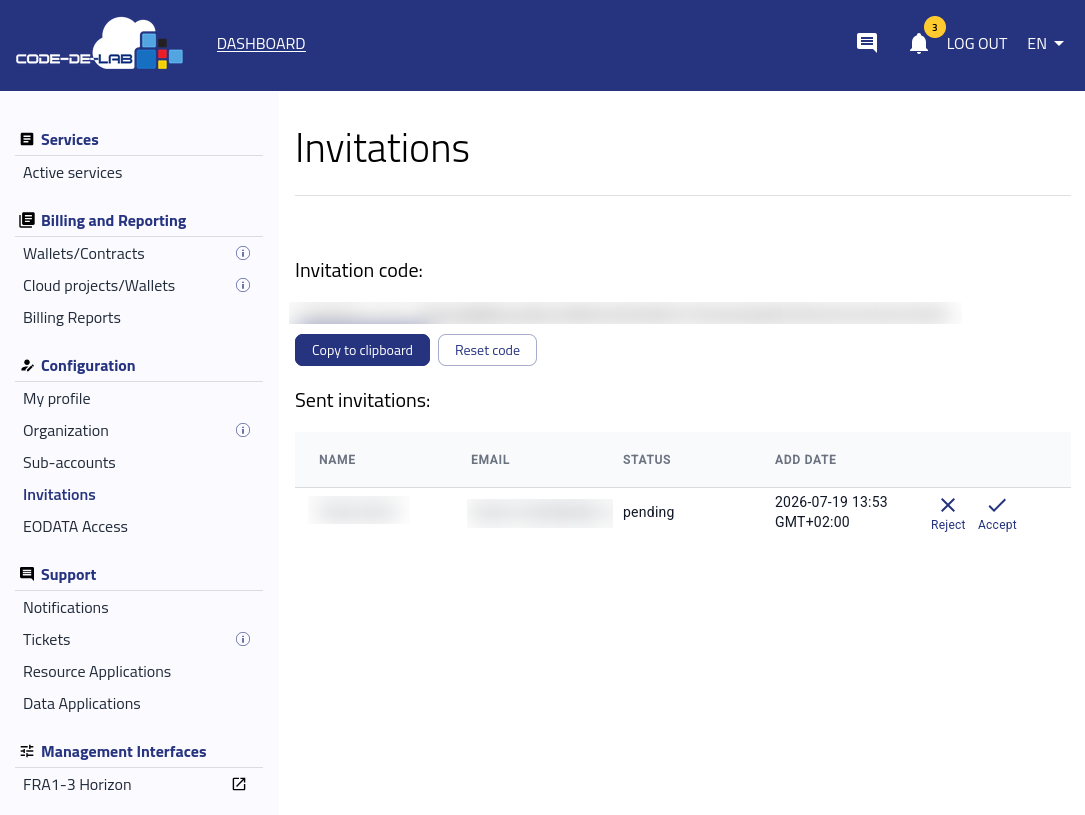
Accepting or rejecting a pending invitation
After approval, an Invitation accepted notification appears and the invitation status changes to accepted.
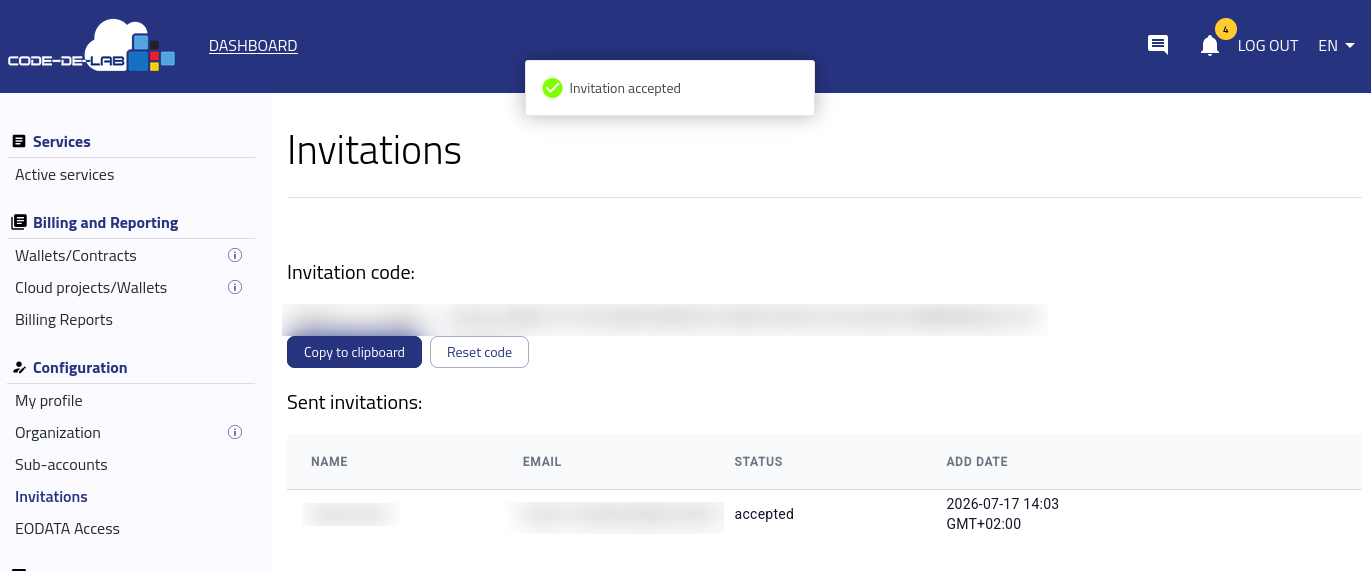
Accepted organization invitation
Resource access after joining an organization
Organization membership and resource quota are separate. Joining an organization does not automatically provide a resource quota.
An invited member can access resources made available through the organization. A user without access to an existing allocation needs a separate quota assigned to their account. Without an appropriate quota, virtual processing resources are unavailable.
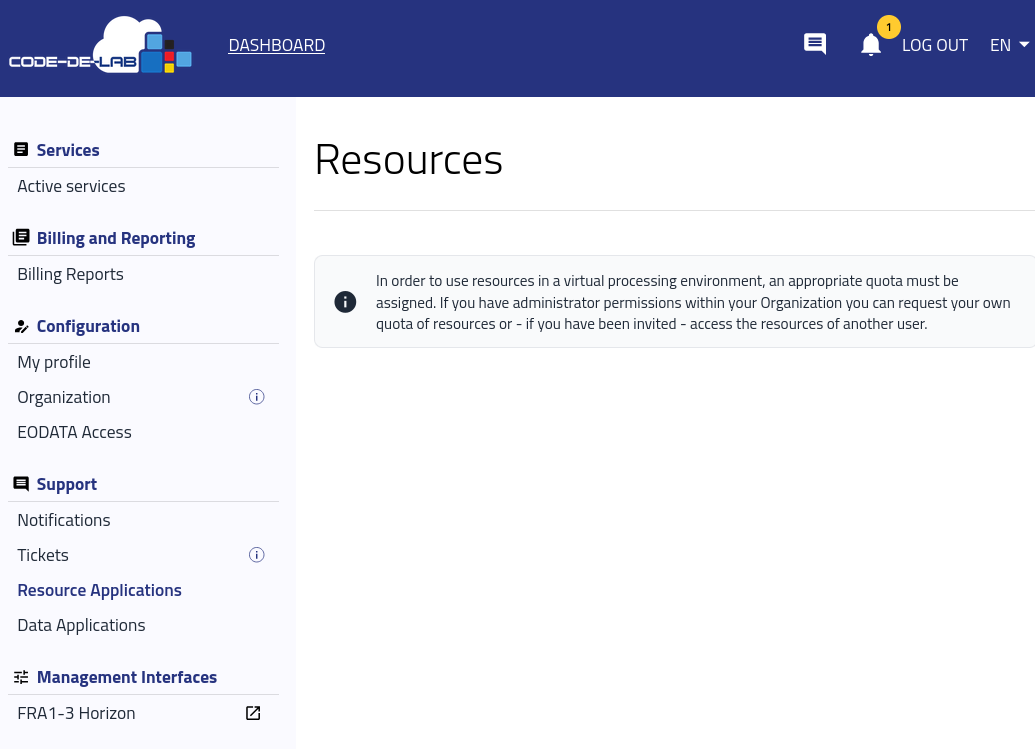
Resources require an appropriate quota
What to do next
After accepting the invitation, assign or review the user’s access by following Tenant Manager users and roles on CODE-DE-Lab.
If the new member also needs a resource quota, submit the appropriate application through Submitting Resource Applications on CODE-DE-Lab. To revoke organization membership later, use Removing a user from an organization.