Private object storage access in CODE-DE-Lab
Connect S3-compatible tools and applications to Private Object Storage by generating an access key and secret key in Tenant Manager. When the credentials need to be replaced or rotated, reset the key pair from the same page.
Prerequisites
No. 1 Account, organization, and suitable role
Use an active account that belongs to an organization in CODE-DE-Lab. Object Storage Access is available to users with the admin or member+ role, but not to those with the member role; Tenant Manager users and roles on CODE-DE-Lab describes the difference. If the account or organization still needs to be prepared, follow Registration and Setting up an Account and Adding and editing an organization.
No. 2 Approved Private Object Storage allocation
The organization must have an approved Private S3 Bucket resource application before credentials can be generated. Submit the request by following Submitting Resource Applications on CODE-DE-Lab and wait until the service has been provisioned.
No. 3 Enabled service in FRA1-3
Under Services, open Service Catalog and verify that Private Object Storage has the status ENABLED. The service is currently available in FRA1-3, which is the region used for key generation below.

Private Object Storage enabled in the Service Catalog.
No. 4 Credential inventory for a key reset
If you intend to replace an existing key pair, identify every tool, script, or application that uses it and prepare to update each configuration. Resetting the key invalidates the previous credentials immediately, so arrange the change before starting if uninterrupted access is required.
Generate access keys
Under Configuration, open Object Storage Access. The page displays one region, FRA1-3, and manages its access key and secret key. If no key pair has been created, the region has the status NOT CONFIGURED; click Create key in its row.
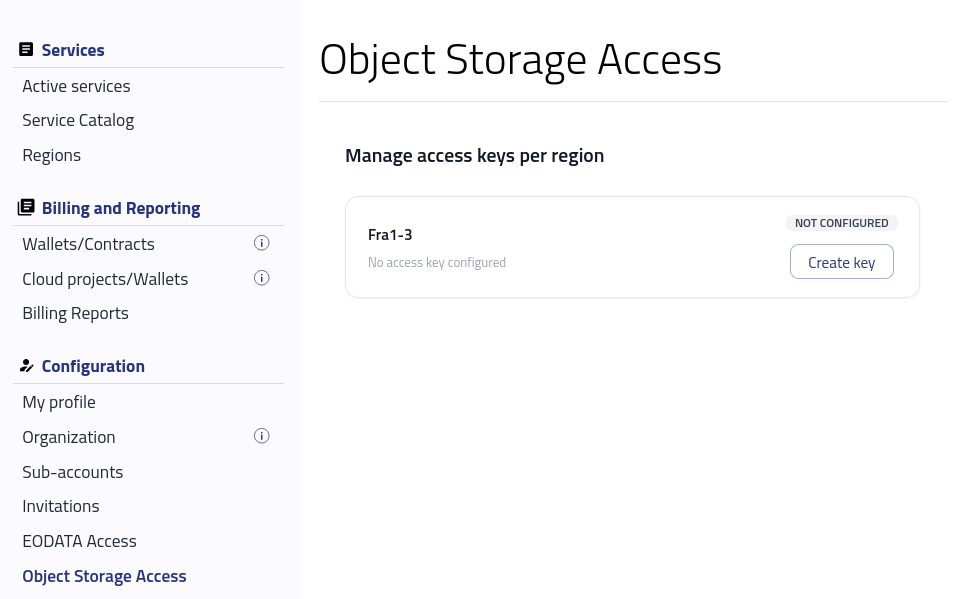
Creating a key for FRA1-3 when it is not yet configured.
The confirmation window asks whether you want to generate a new access key for FRA1-3. Click Confirm to continue or Cancel to return without creating a key.
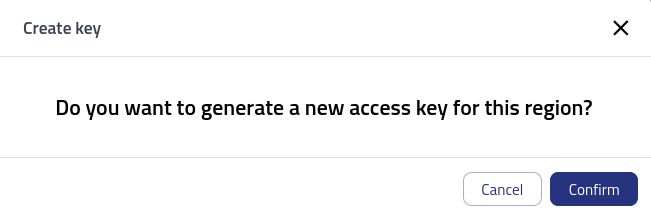
Confirming the generation of a new access key for FRA1-3.
After the key pair is generated, FRA1-3 has the status ACTIVE. The page displays the Access key, Secret key, ARN, and S3 endpoint. Use the eye icon to display a key and the copy icon to copy a value to the clipboard.

Managing the access and secret keys for FRA1-3.
The secret key is visible only once. Copy the access key and secret key and store them securely before clicking Hide secret. Use these credentials together with the displayed S3 endpoint when configuring an S3-compatible tool or application.
Reset key
Click Reset key in the FRA1-3 row to replace its active access key and secret key. The confirmation window warns that this action cannot be undone and that the previous keys will stop working immediately. Click Confirm to reset the keys or Cancel to keep the existing pair.

Resetting the FRA1-3 key pair invalidates the existing access and secret keys immediately.
Reset the keys immediately if they have been compromised. You can also use Reset key for planned key rotation, in which you intentionally invalidate the current credentials and replace them with a new pair.
After the reset, a new key pair is generated automatically. Copy and securely store the new secret key while it is visible, then update the affected configurations.
What to do next
Configure the intended S3-compatible tool or application with the access key, secret key, and S3 endpoint shown for FRA1-3. After a reset, replace the previous credentials in every configuration identified during preparation.
Use Services to review the provisioned service and its billing assignment. For a new or changed Private Object Storage allocation, submit Submitting Resource Applications on CODE-DE-Lab; if an active allocation or key pair does not work as documented, contact Help desk and support.