Two-Factor Authentication to CODE-DE-Lab site using KeePassXC on desktop
This guide explains how to enable and use two-factor authentication (2FA) on the CODE-DE-Lab site using the desktop app KeePassXC. You’ll secure your account with time-based one-time passwords (TOTP) generated on your computer.
Prerequisites
No. 1 Active account and access to TOTP setup
Use an active CODE-DE-Lab account and a web browser that can open the Dashboard at https://tenant-manager.code-de.org. If the account has not yet been created and activated, follow Registration and Setting up an Account first. The account must either be awaiting its initial TOTP configuration or you must still have the existing TOTP secret available for reuse in KeePassXC.
No. 2 Desktop system with installation privileges
The commands in this article apply to Ubuntu and require an account that can run sudo. For another operating system, install KeePassXC using the official download instructions. Have the application ready to launch before beginning the database configuration.
No. 3 Synchronized system clock
TOTP generation depends on accurate system time. Confirm that the desktop clock is synchronized with an internet time source before generating a code.
No. 4 Secure database password and backup location
Choose a strong password for the KeePassXC database and a secure location for its .kdbx file. KeePassXC cannot recover a forgotten database password, and losing the database removes access to every password and TOTP secret stored in it. Prepare a separate backup location so that the database can be backed up after configuration.
What we are going to cover
The concept of KeePassXC
KeePassXC is a free and open-source graphical password manager. It stores passwords, TOTP keys, and other secrets in a file on your computer. You can manually move this file to another computer if you want to use KeePassXC there.
Unlike cloud-based managers such as Bitwarden, 1Password, or LastPass, KeePassXC does not provide built-in sync features.
Attention
Since KeePassXC does not provide any cloud storage, you must ensure that you do not lose the file or anything required to decrypt it. You will lose all the content of the file if you lose any of these objects. You should back up this file regularly.
If you already have KeePassXC installed and configured, skip to Step 3: Add the entry or Step 4: Configure the TOTP.
The following instructions are for Ubuntu. If you use a different operating system, refer to the appropriate documentation.
Step 1: Install KeePassXC
Install KeePassXC before logging in to the CODE-DE-Lab website. Open the terminal and run the following commands:
sudo apt update
sudo apt install -y keepassxc
Step 2: Configure KeePassXC
Launch KeePassXC. During its first run, you will see the following window:
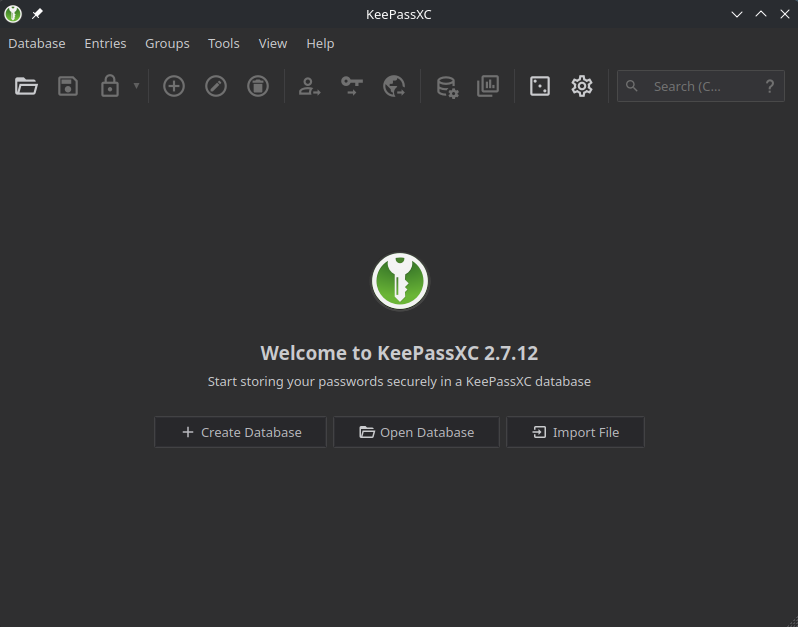
Click Create Database to begin creating a file in which you can store your passwords, TOTP keys, and other secrets. Now you will see the following window:
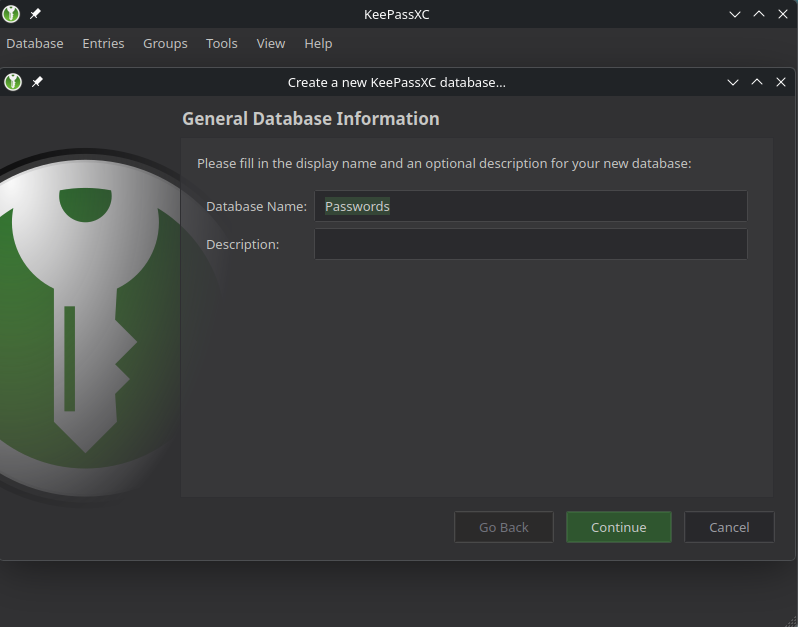
In the first step of database creation, you can enter a name and description for your database. The name provided here will not be the name of your file, so you may leave it as it is. Click Continue. The following window will appear:
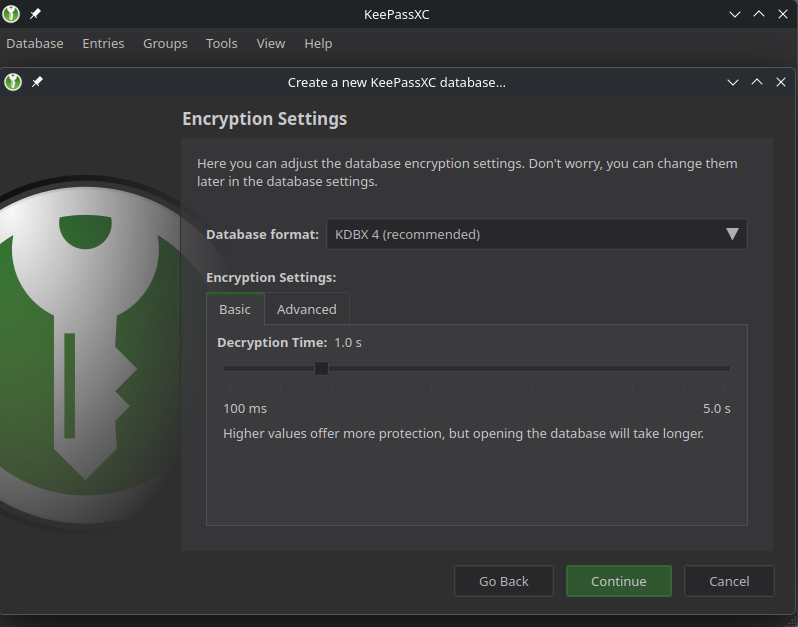
Next, choose how long the database should take to decrypt. As stated in the window, Higher values offer more protection, but opening the database will take longer. Accept the default database format and click Continue. You will now see the following window:
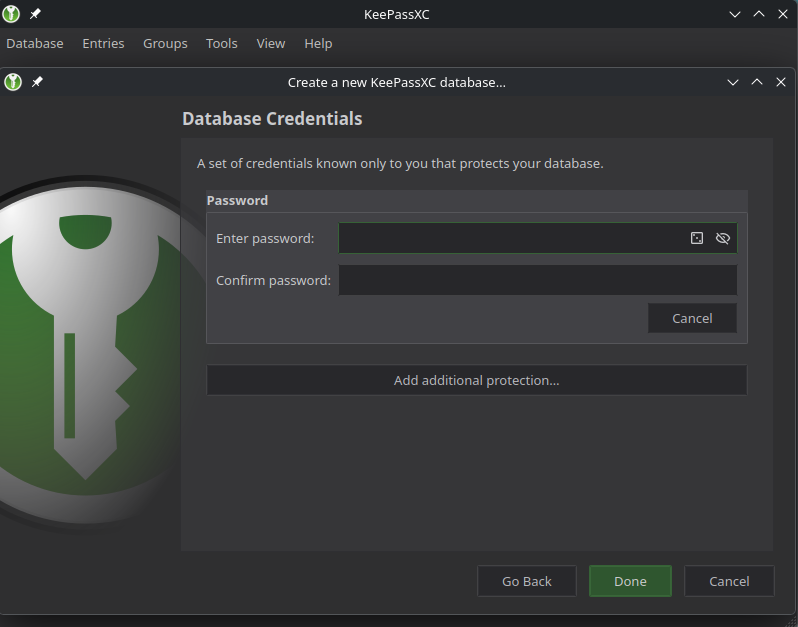
Now you need to provide the password for decrypting your database. Re-enter the password in the second text field. You can also add additional security measures using the button Add additional protection…, but if you are just getting started it might not be needed.
Attention
If at any point in the future you are unable to provide your password (for example, because you have forgotten it) and any additional protection measures you configured, you will be locked out of your database and potentially lose all of its content.
Click Done.
Choose a name and location for the file. Click Save.
Step 3: Add the entry for your account
Your database should now be operational. Create a new entry for your CODE-DE-Lab username and password; you will add its TOTP configuration in Step 4. Click the highlighted plus button to Add a new entry.
Warning
Storing an account password and its TOTP secret in the same KeePassXC database reduces the separation provided by two-factor authentication. For stronger protection, store TOTP secrets in a separate KeePassXC database protected by a different password.

The following window will appear:
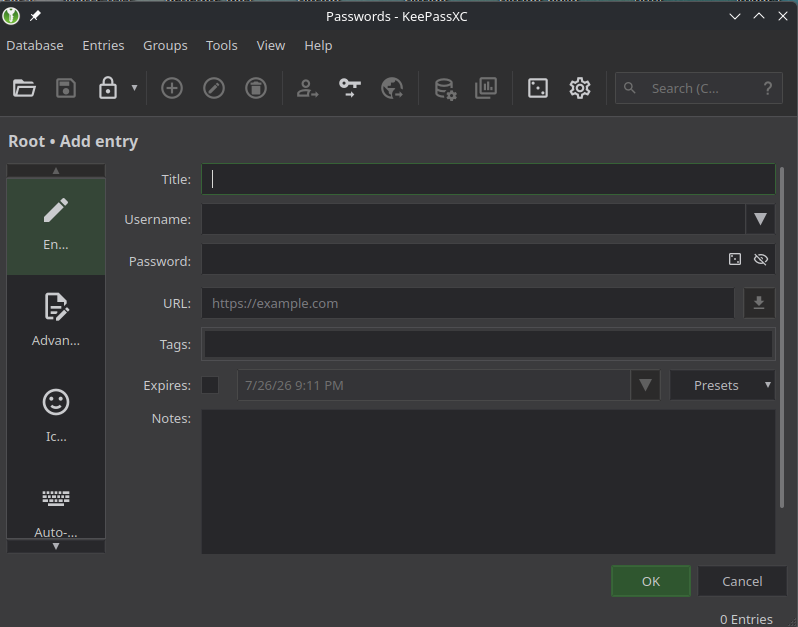
In the Title field, enter the name under which your entry should be identified in your database, for example CODE-DE-Lab. Then, type your username and password.
Click OK to save the entry.
If the option Automatically save after every change in the General section of the application settings is enabled, you do not have to save. If not, press Ctrl+S to save the database.
The 2FA process relies on a shared secret — a 32-character base32 string used to generate TOTP codes.
Note
Setup is usually performed once. You’ll use KeePassXC to generate codes every time you log in.
Step 4: Configure TOTP
If TOTP is already configured for the account and you retained the secret used during setup, you can reuse that secret in KeePassXC. If you are setting it up for the first time, the site will display the TOTP secret when you log in.
Use one of the following links to sign in:
You will see a form with a QR code, as shown on the left side:
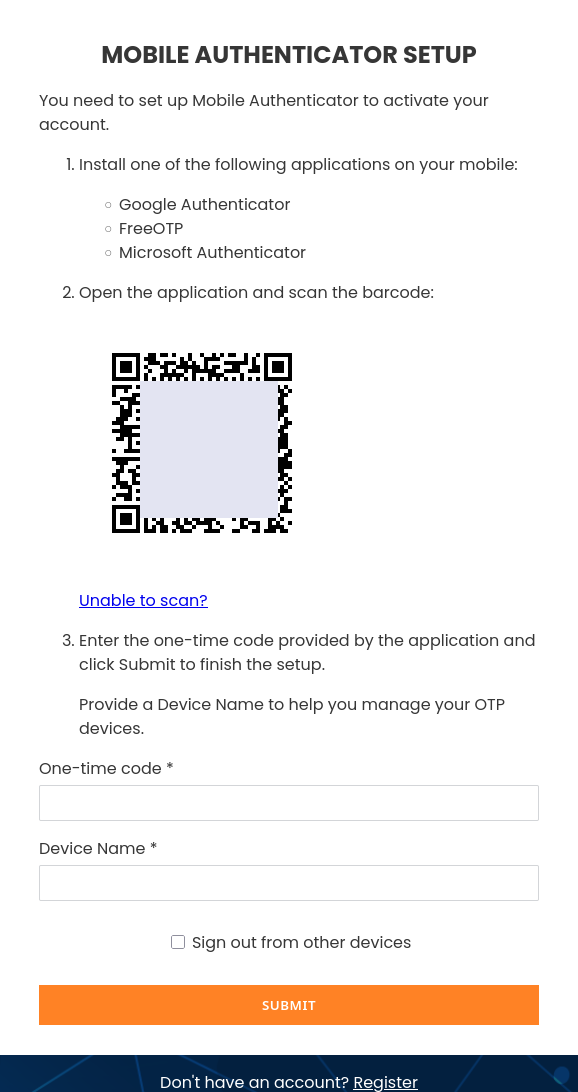
|
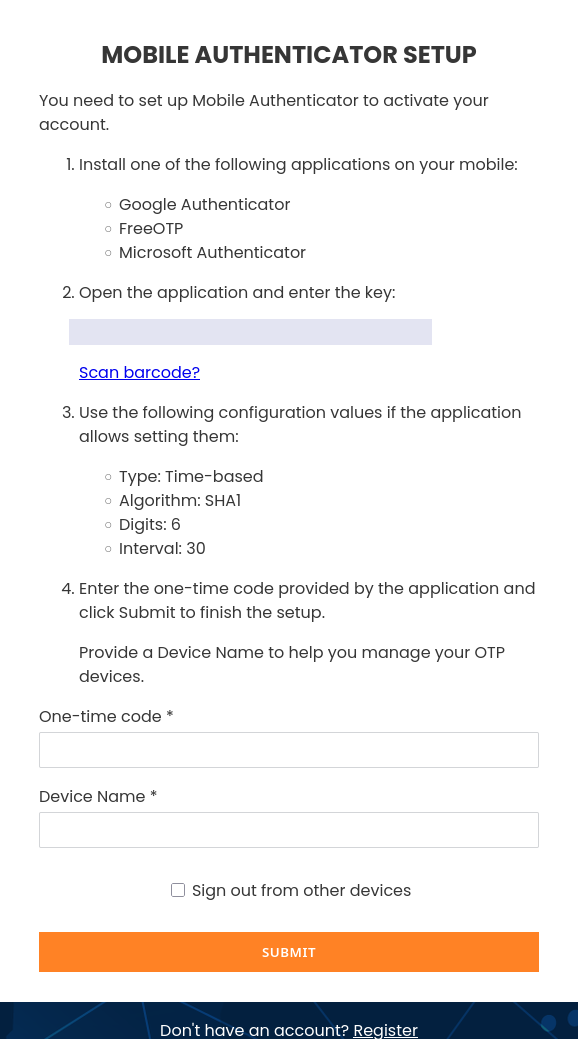
|
To enter the secret manually in KeePassXC, click Unable to scan?. The form on the right will appear and display your TOTP key.
Note
Enter a Device Name during the initial authenticator setup and record it exactly as entered, including capitalization and spaces. Check the spelling before submitting the form: a typo can create a separate, similarly named device entry and make it difficult to identify the correct credential later. You will need the same device name when resetting or changing your password, and it may also be required for similar account-security procedures.
Once you have your TOTP key:
Return to KeePassXC
Right-click the entry for your account
Choose TOTP… → Setup TOTP…
You will see the following window:
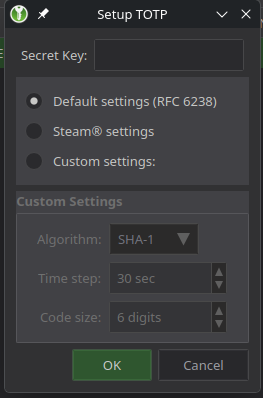
Paste your key into the Secret Key field and select Default settings (RFC 6238). Click OK.
To view your TOTP code:
Left-click the entry
Press Ctrl+Shift+T
Alternatively, highlight the entry and press Ctrl+T to copy the TOTP code to your clipboard (remember, depending on settings it may disappear, so be sure to paste it in time).
The window with the code will look like this:
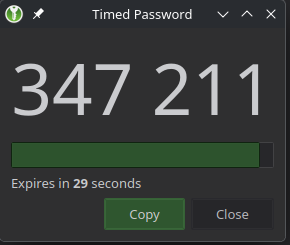
Type the 6-digit code from the window above into the One-time code field on the CODE-DE-Lab website.
Choose a name for your device that holds the TOTP key.
Do this before the code expires. If it does, wait for a new one and enter that instead.
Click Submit to continue the login process.
Step 5: Log in using TOTP
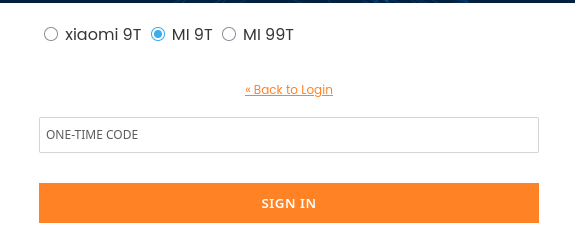
Each time you log in, type your credentials as usual. You will then see the data entry field for the one-time code:
Caution
Device names may differ only by capitalization or a typing error. In the example above, MI 9T is the correct registered device; xiaomi 9T and MI 99T are incorrect. Enter the device name carefully during the initial authenticator setup, record it exactly, and select the matching entry when signing in.
Select the entry in KeePassXC. Press Ctrl+Shift+T to generate the TOTP code. Type it into the ONE-TIME CODE field in your browser.
To copy the code instead, press Ctrl+T while the entry is highlighted. Paste it quickly—your clipboard may be cleared shortly, depending on your system settings.
Each code is valid for 30 seconds. If only a few seconds remain, wait for the next code.
You should now be signed in.
What to do next
To generate TOTP codes with a smartphone instead, follow Two-Factor Authentication on the CODE-DE-Lab Site Using a Mobile Application.
You can also use KeePassXC to generate codes for OpenStack CLI. Follow How to Activate OpenStack CLI Access to CODE-DE-Lab Cloud Using Two-Factor Authentication; when the procedure prompts for a six-digit TOTP code, generate it as shown in Step 5 above.