How to Activate OpenStack CLI Access to CODE-DE-Lab Cloud Using Two-Factor Authentication
This guide shows how to enable OpenStack CLI access to the CODE-DE-Lab cloud using two-factor authentication (2FA). You will learn how to install the required tools, download and activate the appropriate RC file, and verify your setup with a test command.
What We Are Going to Cover
Quick Start (Summary)
The following high-level steps outline the complete procedure:
Install OpenStackClient and jq
Download the OpenStack RC File (2FA) from Horizon
Activate the file in a terminal using source
Enter your password and 2FA code
Run openstack flavor list to verify access
Each of these steps is explained in detail in the sections below.
Understanding Two-Factor Authentication
To use the OpenStack CLI, your computer must authenticate to the cloud.
Two-factor authentication adds an extra layer of security. In this case, you enter not only your password but also a temporary code generated by a device or software application, such as FreeOTP or KeePassXC.
The authentication parameters are passed to the CLI through a script file known as the RC file. This file configures your session with the necessary credentials.
Prerequisites
No. 1 Account and OpenStack project access
Use an active CODE-DE-Lab account that can open Horizon at https://identity.cloudferro.com/auth/realms/CODE-DE3/account/ and access the project for which you will download the RC file. The account must have the member+ or admin role; confirm the required access in:
Tenant Manager users and roles on CODE-DE-Lab
No. 2 OpenStackClient and a compatible shell
Install OpenStackClient on an internet-connected computer and use a shell that can run the downloaded .sh RC file. A standard shell is suitable on Linux or macOS; on Windows, use Git Bash, Cygwin, or Windows Subsystem for Linux.
Installation instructions are available in:
Confirm that the openstack command runs in the selected shell before continuing.
No. 3 Authenticator and jq for two-factor authentication
Keep the authenticator configured for this account within reach because the RC file prompts for a current six-digit code. Setup instructions are available in:
Two-Factor Authentication on the CODE-DE-Lab Site Using a Mobile Application
Two-Factor Authentication to CODE-DE-Lab site using KeePassXC on desktop
The 2FA RC file also uses jq to process authentication tokens in JSON format. On Ubuntu, install it with:
sudo apt update
sudo apt install jq
Run jq --version before downloading the RC file and continue when the command returns the installed version.
Downloading the RC File
The RC file contains all the environment variables needed for CLI-based authentication.
To download it, log in to Horizon and look for your account name in the top-right corner.
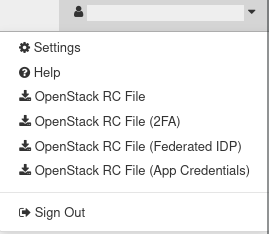
Click on API Access to reach the download section:
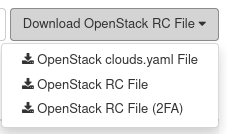
You will see several download options.
Choosing the Correct RC File
Download OpenStack RC File (2FA).
Once the RC file is downloaded, rename and move it to a working directory for easier access. For example:
mv cloud_00734_1-openrc-2fa.sh openrc.sh
What’s Inside the RC File
The RC file is a script that sets temporary environment variables such as OS_USERNAME, OS_PASSWORD, and 2FA-related keys.
Here’s what a typical 2FA RC file looks like:
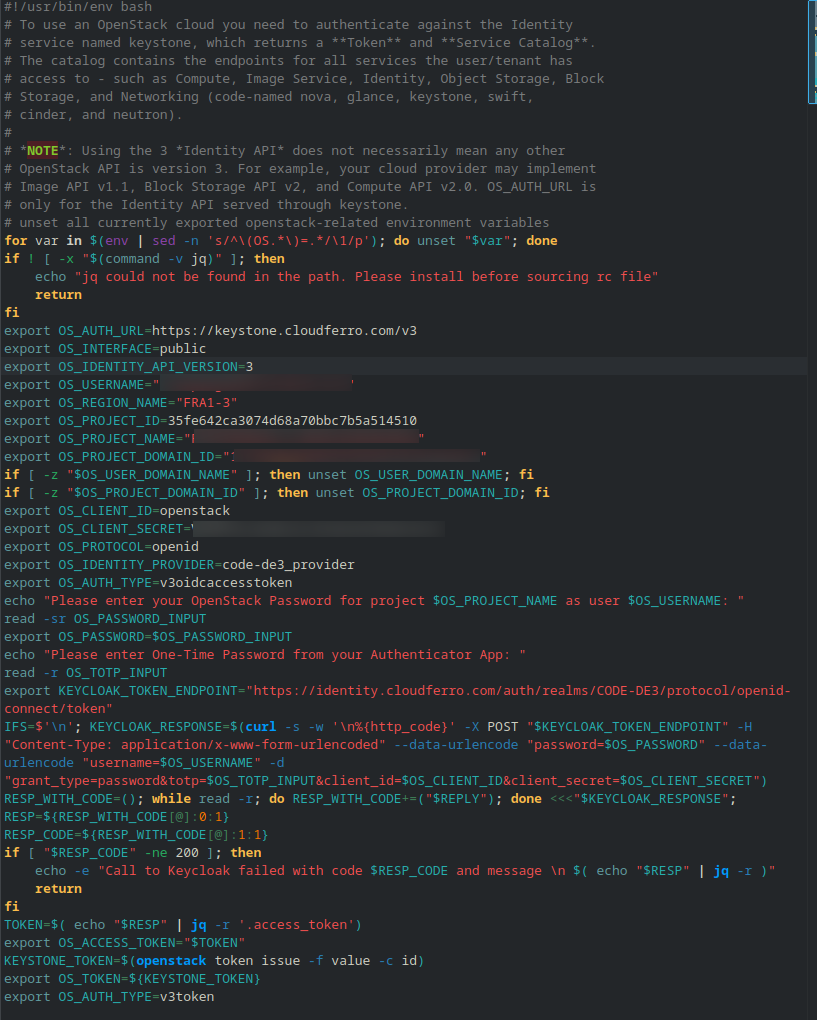
The file configures your session to authenticate with the cloud automatically, using these variables.
Activating the RC File
In this step, you’ll run the RC file so that your shell environment is updated with the credentials it contains.
Ubuntu/macOS
Use the source command to load the environment variables:
source ./openrc.sh
If the filename contains spaces, place the filename in quotation marks. For example:
source ./"my openrc.sh"
Tip
./ refers to the current directory. Run this from the same folder where the file is located.
After running this command, your terminal will prompt you to enter your password and a one-time code.
Windows
You can also run the RC file under Windows, but you’ll need GitBash or WSL to execute .sh scripts. Refer back to the OpenStackClient installation section if you haven’t set this up yet.
Using the RC File with Two-Factor Authentication
You’ll be prompted for both your password and a six-digit TOTP code.
Open your authenticator app and select the account tied to your cloud login:
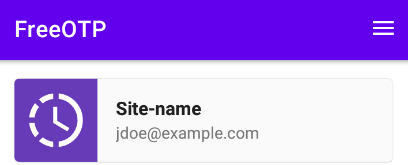
You’ll see a six-digit code, which is refreshed every 30 seconds:
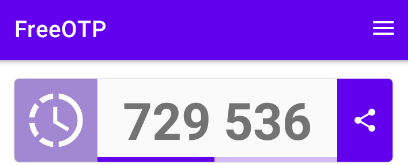
Enter the code at the prompt. If all credentials are correct, the prompt will return silently, and you can begin issuing OpenStack commands.
Warning
These codes expire quickly — always use the most recently displayed value.
Environment Variable Lifetime
Keep in mind that the environment variables set by the RC file only apply to the current terminal session.
To demonstrate this, open two terminal windows: activate the RC file in one, then try to run an OpenStack command in the other. It will fail unless you also activate the RC file there.
You’ll need to source the file every time you open a new terminal window.
Testing CLI Access
To verify that authentication worked correctly, run the following command:
openstack flavor list
You should receive a list of available flavors from the cloud:
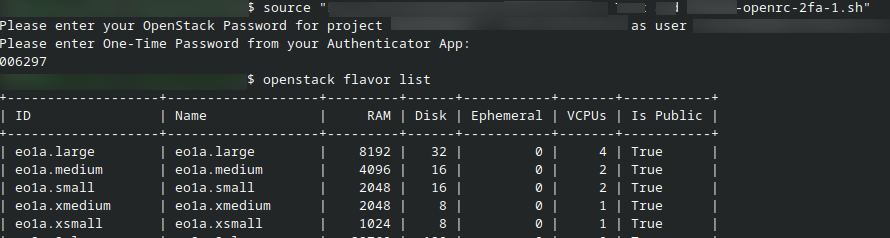
If this command succeeds, your OpenStack CLI access is fully configured.
Troubleshooting
jq not installed
Install jq using your package manager or download it from https://jqlang.github.io/jq/download/.
Wrong 2FA Code or Password
Call to Keycloak failed with code 401 and message
{
  "error": "invalid_grant",
  "error_description": "Invalid user credentials"
}
Simply re-run the RC file and re-enter your credentials.
No Internet Connection
If the RC file fails to authenticate and shows this message:
Call to Keycloak failed with code 000 and message
Ensure your device is connected to the Internet, then try again.
Wrong RC File for 2FA Account
Unrecognized schema in response body. (HTTP 401)
This likely means you downloaded the non-2FA version. Replace it with the correct RC file for your account type.
What To Do Next
With your CLI access enabled, you can now manage your cloud environment programmatically.
To create a virtual machine:
How to create a VM using the OpenStack CLI client on CODE-DE-Lab cloud
To upload a custom image:
How to upload your custom image using OpenStack CLI on CODE-DE-Lab