Two-Factor Authentication on the CODE-DE-Lab Site Using a Mobile Application
This guide explains how to enable and use two-factor authentication (2FA) on the CODE-DE-Lab site using mobile apps such as FreeOTP. By following this tutorial, you’ll secure your account with Time-based One-Time Passwords (TOTP) generated on your smartphone.
What We Are Going to Cover
Introduction to Two-Factor Authentication (2FA)
Traditionally, online security relied on a combination of usernames and passwords. Most usernames are email addresses, and if an email address is breached, attackers may easily guess or retrieve the password too. Brute-force methods, cloud computing power, social engineering, and identity theft have made password-only systems increasingly vulnerable.
To counteract this, modern systems use two or more factors of authentication:
Something the user knows — e.g., a password or a security question.
Something the user has — e.g., a smartphone, token, or smart card.
Something the user is — e.g., biometric data like fingerprint or face scan.
On CODE-DE-Lab, two-factor authentication (2FA) requires:
Your username and password
A TOTP code generated by a mobile app
This article explains how to use a mobile device for 2FA. To use your computer for the same purpose, see Two-Factor Authentication to CODE-DE-Lab site using KeePassXC on desktop.
We’ll refer to “mobile authenticator” as a generic term for any 2FA mobile app.
Authenticator App Comparison
Feature |
FreeOTP |
Google Authenticator |
Microsoft Authenticator |
|---|---|---|---|
Developer |
Red Hat |
Microsoft |
|
Cost |
Free |
Free |
Free |
Open Source |
Yes |
No |
No |
2FA Method |
TOTP, HOTP |
TOTP |
TOTP, Push Notifications, Passwordless |
Cloud Backup |
No |
No |
Yes (encrypted) |
Push Notifications |
No |
No |
Yes (for Microsoft accounts) |
Account Transfer |
QR code export only |
QR code export |
Cloud sync |
Customization |
Limited |
Limited |
Rich naming, icons |
Integration |
Broad (TOTP/HOTP) |
TOTP only |
Best with Microsoft ecosystem |
Security |
High (offline, open-source) |
High (offline) |
High (biometric lock) |
Biometric Lock |
No |
No |
Yes |
Multi-Device Sync |
No |
No |
Yes |
Usability |
Minimalist |
Simple |
Feature-rich |
You can use FreeOTP for Google accounts too. If you already use Google Authenticator, you may prefer to stick with it.
Common Issues with Mobile Authenticators
Caution
Losing your mobile device without recovery codes may lock you out permanently.
- FreeOTP
No backup or sync
Manual reconfiguration for each account
- Google Authenticator
No cloud backup
Vulnerable if phone/SMS is lost
- Microsoft Authenticator
Best with Microsoft accounts
Cloud sync requires Microsoft account
In this tutorial, we’ll use FreeOTP.
Warning
If you lose access to QR codes or the mobile device, email https://code-de-lab.org/en/contact/ for recovery assistance.
Prerequisites
No. 1 Active account and browser access
Two-factor authentication is configured through the CODE-DE-Lab sign-in flow, so use an active account and a web browser that can open https://tenant-manager.code-de.org and Horizon at https://identity.cloudferro.com/auth/realms/CODE-DE3/account/. If the account has not yet been created and activated, follow Registration and Setting up an Account first.
No. 2 Mobile authenticator
Choose a TOTP authenticator supported by your phone and install it before the setup page displays the QR code. The procedure uses FreeOTP in its examples, but Google Authenticator and Microsoft Authenticator can also generate the required six-digit codes.
App |
FreeOTP |
Google Authenticator |
Microsoft Authenticator |
|---|---|---|---|
Platforms |
Open the installed application once before continuing and confirm that it is ready to scan a QR code or accept a secret manually.
Setting Up the Secret Code
Note
Setup is usually performed once; however, you’ll need to use the mobile app every time you log in.
The 2FA process relies on a shared secret — a 32-character base32 string used to generate TOTP codes.
There are two setup methods:
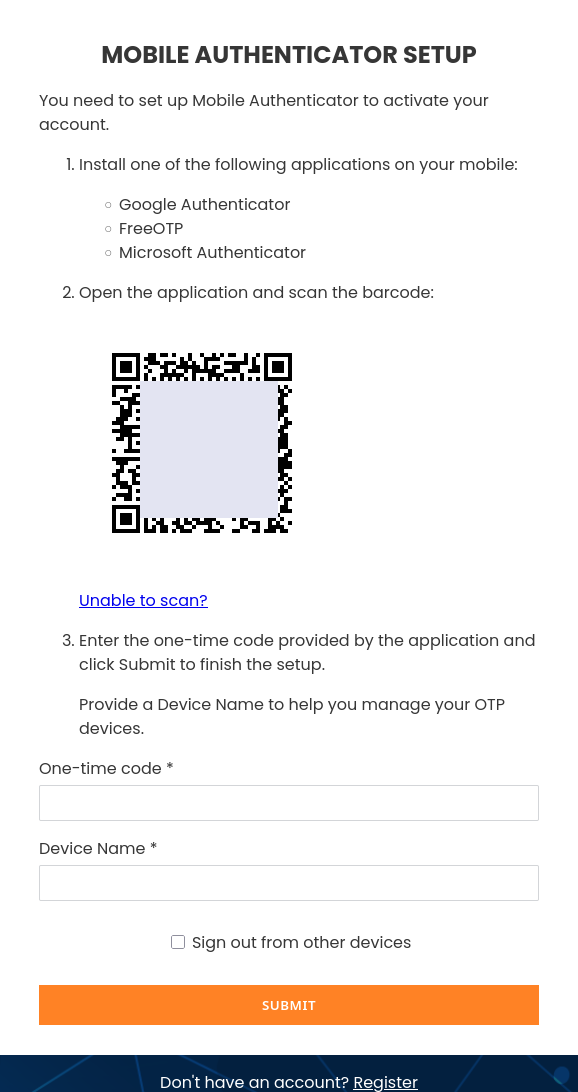
Scan a QR code — easier, but doesn’t reveal the secret.
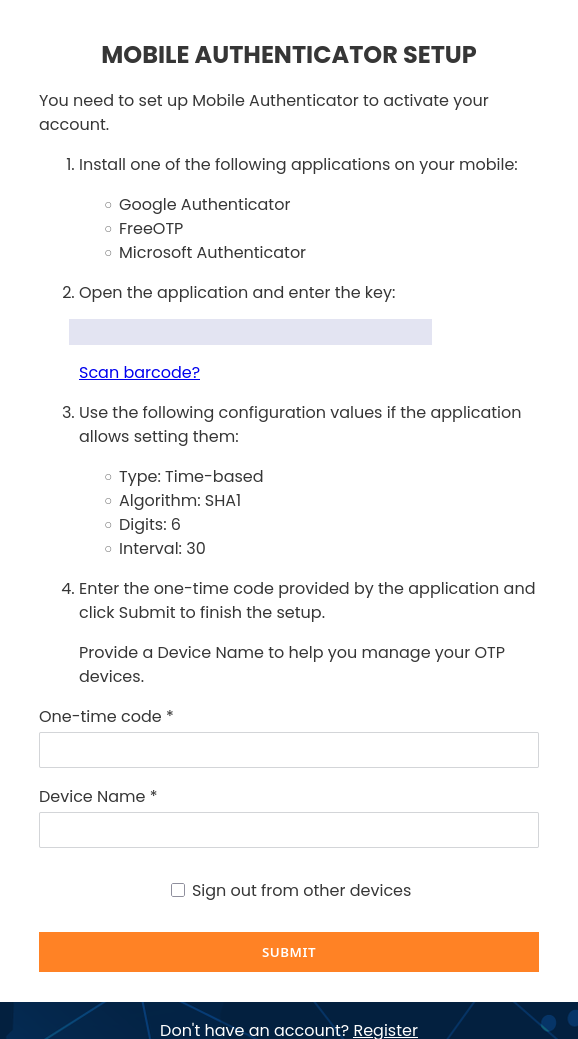
Enter the secret manually — useful for automation or backups.
To begin setup:
|
|
To enter the secret manually in mobile app, click Unable to scan?. The form on the right will appear and display your TOTP key.
Note
Enter a Device Name during the initial authenticator setup and record it exactly as entered, including capitalization and spaces. Check the spelling before submitting the form: a typo can create a separate, similarly named device entry and make it difficult to identify the correct credential later. You will need the same device name when resetting or changing your password, and it may also be required for similar account-security procedures.
Option 1: Scan the QR Code
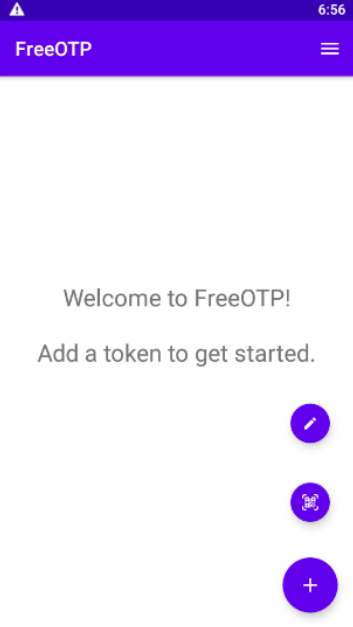
Open FreeOTP
Tap the plus (+) icon → tap QR code icon
Scan the QR code
A new TOTP entry will appear
Note
Every page reload generates a new QR/secret — use it immediately or save securely.
Option 2: Enter the secret manually
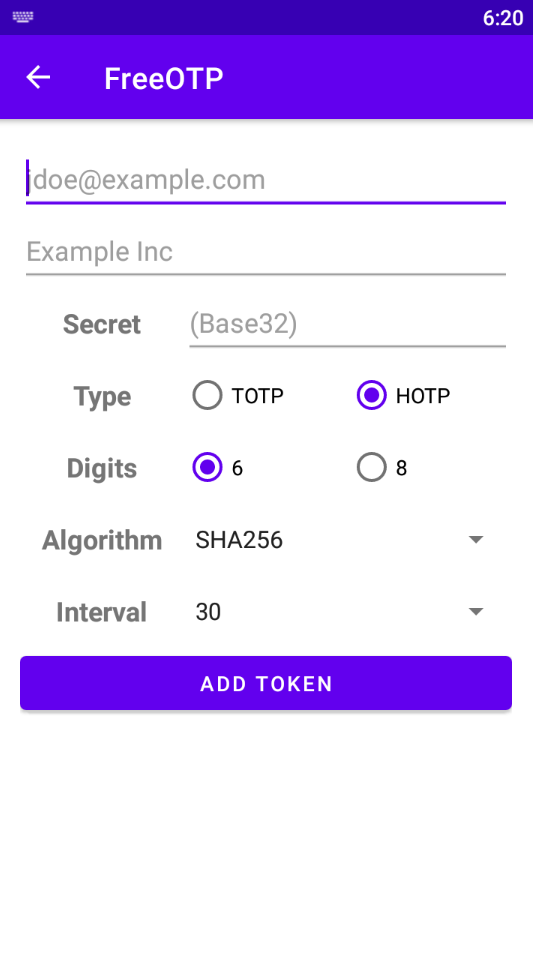
Copy the key (e.g., GBLH AN3I JNBT EZ3T KAZE 6OCG JVLV OSJQ) and enter the values:
Type: TOTP
Algorithm: SHA1
Digits: 6
Interval: 30 seconds
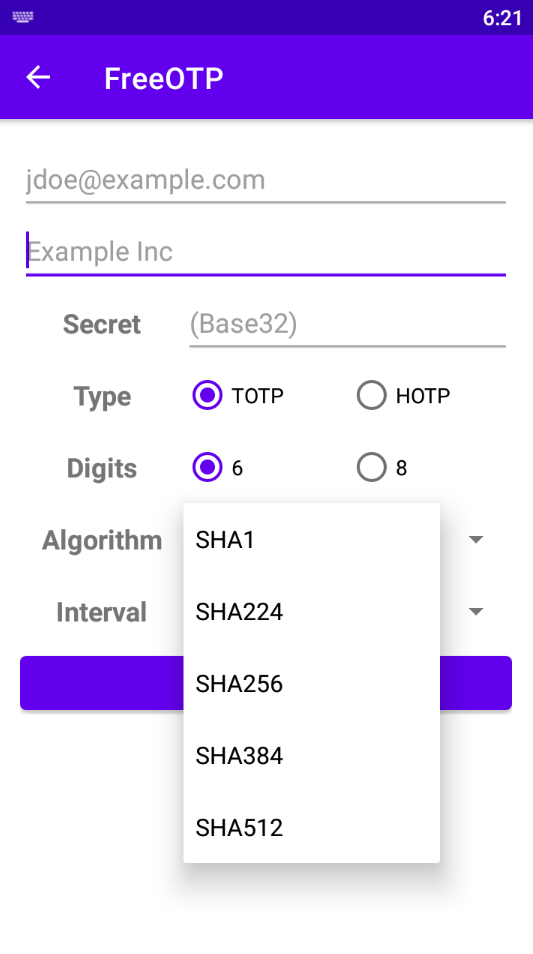
This is the starting screen for manual entry in FreeOTP:
Choose SHA1 for Algorithm field:
Tap ADD TOKEN to save the entry.
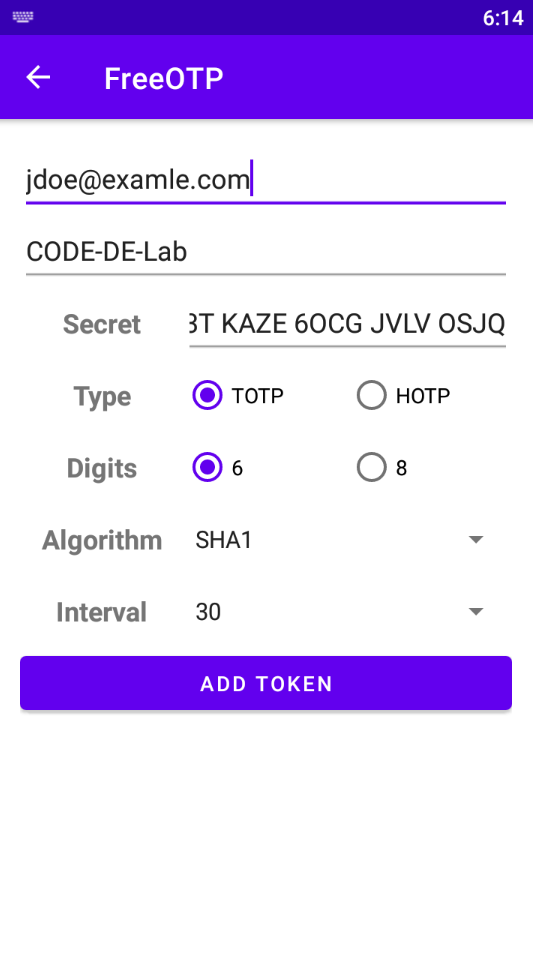
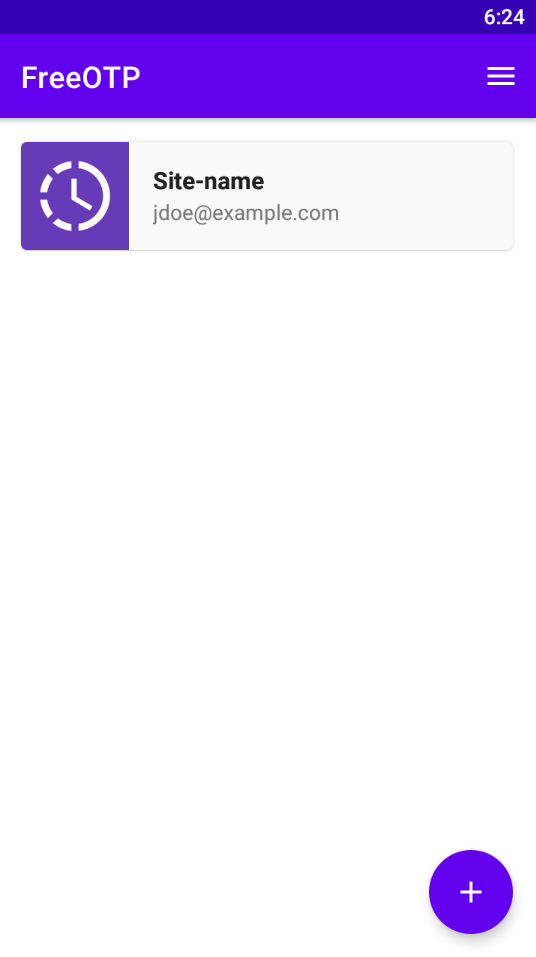
Enter the data into email and example fields and tap button ADD TOKEN. A new entry in FreeOTP will appear:
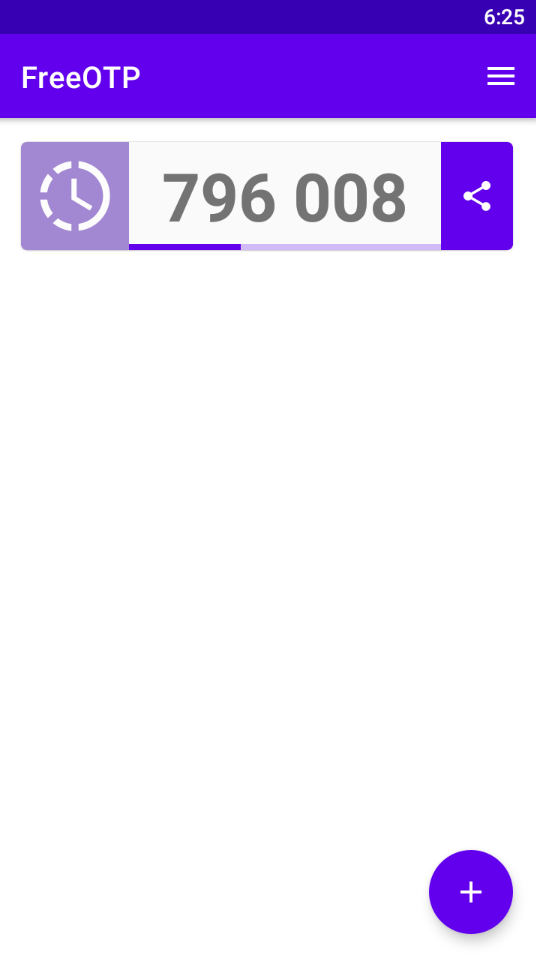
To get your 6-digit code, tap the entry:
Logging Into the Dashboard with 2FA
Visit https://identity.cloudferro.com/auth/realms/CODE-DE3/account/
Select CODE-DE-Lab from the drop-down
Click Sign In
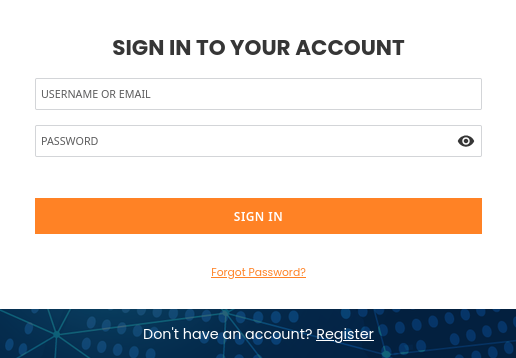
Choose the device (here it is MI 9T) and enter your TOTP code:
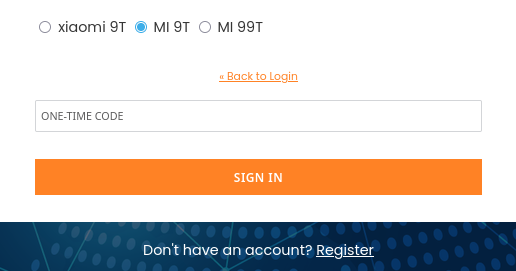
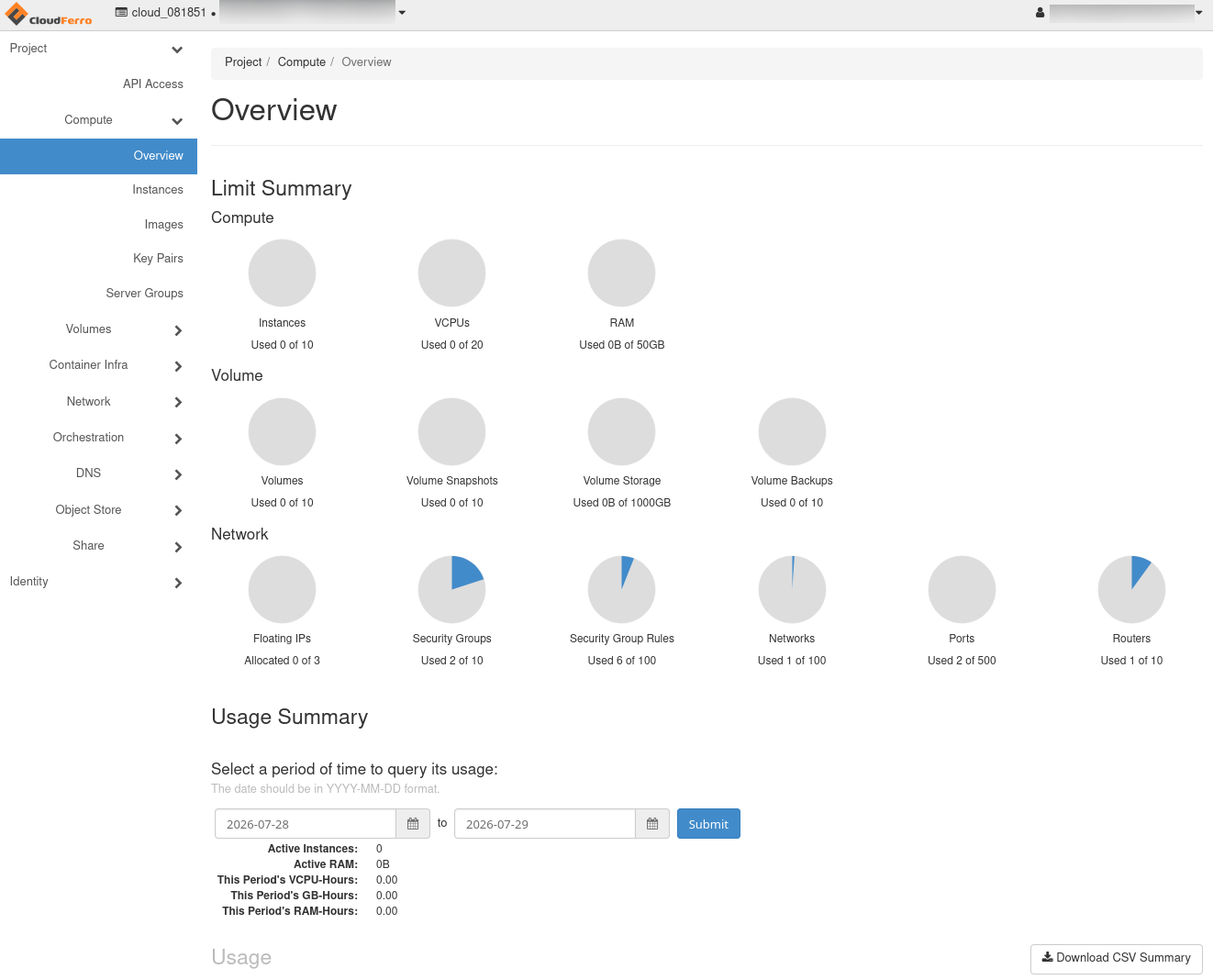
Open FreeOTP, get the code, and submit. You are in the Horizon now:
Note
FreeOTP may auto-generate the code when it’s running in foreground.
Logging Into Horizon
Two ways:
Method 1: From Dashboard
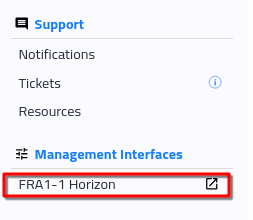
Click on link FRA1-1 Horizon in the dashboard:
Method 2: Direct Link
Visit https://identity.cloudferro.com/auth/realms/CODE-DE3/account/ directly. You’ll be prompted to re-enter your 2FA code.
Either way, you get to this form:
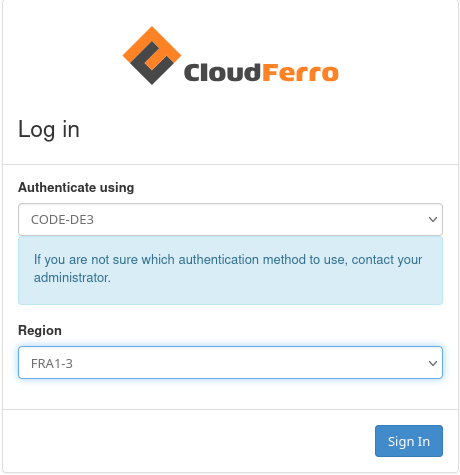
Authenticate and enter the OpenStack Horizon interface; again, you end in Horizon:
What To Do Next
To use your computer for 2FA, see Two-Factor Authentication to CODE-DE-Lab site using KeePassXC on desktop.
After logging in, you can activate OpenStack CLI access with your 2FA-enabled account: How to Activate OpenStack CLI Access to CODE-DE-Lab Cloud Using Two-Factor Authentication