How to access object storage from CODE-DE using boto3
In this article, you will learn how to access object storage from CODE-DE using the Python library boto3.
What we are going to cover
Prerequisites
No. 1 Account
You need a CODE-DE hosting account with access to the Horizon interface: https://cloud.fra1-1.cloudferro.com/auth/login/?next=/.
No. 2 Generated S3 credentials
You need to generate S3 credentials. See article How to generate and manage EC2 credentials on CODE-DE.
No. 3 A Linux or Windows computer or virtual machine
This article was written for Ubuntu 22.04 and Windows Server 2022. Other operating systems might work, but are out of scope of this article and might require you to adjust the commands supplied here.
You can use this article both on Linux or Windows virtual machines or on a local computer running one of those operating systems.
To build a new virtual machine hosted on CODE-DE cloud, one of the following articles can help:
How to create a Linux VM and access it from Windows desktop on CODE-DE
How to create a Linux VM and access it from Linux command line on CODE-DE
No. 4 Additional Python libraries
Here is how to install Python 3 and the boto3 library on Ubuntu and Windows.
Ubuntu 22.04: Using virtualenvwrapper and pip
In Python, you will typically use virtual environments, as described in How to install Python virtualenv or virtualenvwrapper on CODE-DE. If your environment is called managing-files, use the workon command to enter the virtual environment and then install boto3:
workon managing-files
pip3 install boto3
Ubuntu 22.04: Using apt
If you do not need such an environment and want to make boto3 available globally under Ubuntu, use apt. The following command installs both Python 3 and the boto3 library:
sudo apt install python3 python3-boto3
Windows Server 2022
If you are using Windows, follow this article to learn how to install boto3: How to install boto3 in Windows on CODE-DE
Terminology: containers vs. buckets
There are two object storage interfaces:
Swift / Horizon – the Horizon dashboard uses the Swift API, where the top-level namespaces are called containers.
S3 / boto3 – the S3-compatible endpoint, used by boto3 and other S3 tools, uses buckets as the top-level namespaces.
Technically, containers and buckets play a similar conceptual role. They are both top-level namespaces in object storage, but they are not the same resource and are managed through different APIs.
A container created in the Horizon interface does not automatically appear as an S3 bucket for boto3, and an S3 bucket created through boto3 does not automatically show up as a container in Horizon.
In this article, we use the following terminology:
bucket when talking about S3 and boto3,
container when referring to Swift objects visible in Horizon.
How to use the examples provided
Each of the examples provided can serve as standalone code. You should be able to:
enter the code in your text editor,
define appropriate values for the variables,
save it as a file,
run it.
You can also use these examples as a starting point for your own code.
Note
In many examples, we use boto3 or boto3_11_12_2025_09_31 as example bucket names.
Before creating a new bucket, first run the Listing buckets example. If the output already shows a bucket that you can use, use that bucket in the remaining examples.
In some environments, a project may have no more than two S3 buckets at the same time. If the bucket quota is already full, creating another bucket will fail with a TooManyBuckets error.
Each coding example has three parts:
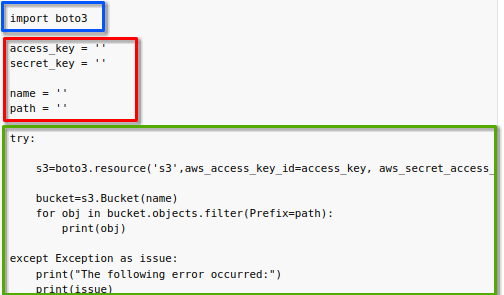
- blue rectangle Import necessary libraries
It is a standard Python practice to import all libraries needed for the code later on. In this case, you first import the boto3 library.
- red rectangle Define input parameters
A typical call in the boto3 library looks like this:
s3 = boto3.resource(
    "s3",
    aws_access_key_id=access_key,
    aws_secret_access_key=secret_key,
    endpoint_url=endpoint_url,
    region_name=region_name,
)
For each call, several variables must be present:
aws_access_key_id – from Prerequisite No. 2,
aws_secret_access_key – also from Prerequisite No. 2,
endpoint_url – the S3 endpoint for the cloud region you are using,
region_name – the region name used by S3 tools.
Use the concrete value of endpoint_url and region_name for the cloud region you are working with.
endpoint_url = "https://s3.fra1-3.cloudferro.com"
region_name = "RegionOne"
Other variables may be needed on a case-by-case basis:
bucket_name,
path,
and possibly others. Be sure to enter values for all additional variables before running the examples.
- green rectangle boto3 call
Most of the preparatory code stays the same from file to file. This last part is where the actual action takes place. Sometimes it is only one line of code, sometimes several lines, usually a loop.
Running Python code
Once you have provided all values for the appropriate variables, save the file with a .py extension. One way of running Python scripts is to use the command line. Navigate to the folder where the script is located and execute one of the commands below. Replace script.py with the name of your script.
python3 script.py
python script.py
Make sure that the name and location of the file are passed to the shell correctly. Watch out for spaces and other special characters.
Important
In these examples, even in case of potentially destructive operations, you will not be asked for confirmation. If, for example, a script saves a file and a file already exists under the designated name and location, it will likely be overwritten. Make sure this is what you want before running the script, or enhance the code with checks that verify whether the file already exists.
In all examples that follow, we assume that the corresponding buckets and objects already exist unless stated otherwise. Adding checks of that kind is out of scope of this article.
Listing buckets
Start by listing buckets visible to your S3 credentials. This tells you whether you already have a bucket that can be used in the remaining examples.
boto3_list_buckets.py
import boto3

access_key = ""
secret_key = ""

endpoint_url = "https://s3.fra1-3.cloudferro.com"
region_name = "RegionOne"

try:
    s3 = boto3.client(
        "s3",
        aws_access_key_id=access_key,
        aws_secret_access_key=secret_key,
        endpoint_url=endpoint_url,
        region_name=region_name,
    )

    print(s3.list_buckets()["Buckets"])

except Exception as issue:
    print("The following error occurred:")
    print(issue)
The output should be a list of dictionaries, each providing information about a particular bucket, starting with its name. If two buckets, cf-s3-test and cf-s3-test-1, already exist, the output might be similar to this:
[{'Name': 'cf-s3-test', 'CreationDate': datetime.datetime(2026, 4, 30, 12, 3, 28, 216000, tzinfo=tzutc())},
 {'Name': 'cf-s3-test-1', 'CreationDate': datetime.datetime(2026, 4, 30, 12, 53, 8, 381000, tzinfo=tzutc())}]
Note
If the output already shows a bucket that you can use, use that bucket in the remaining examples. In the code samples below, replace example bucket names such as boto3 or boto3_11_12_2025_09_31 with the bucket name returned by this command.
If bucket creation fails with a TooManyBuckets error, use one of the buckets returned by this listing command in the remaining examples.
To simplify the output, use a for loop with a print statement to display only bucket names, one bucket per line.
boto3_list_one_by_one.py
import boto3

access_key = ""
secret_key = ""

endpoint_url = "https://s3.fra1-3.cloudferro.com"
region_name = "RegionOne"

try:
    s3 = boto3.client(
        "s3",
        aws_access_key_id=access_key,
        aws_secret_access_key=secret_key,
        endpoint_url=endpoint_url,
        region_name=region_name,
    )

    for bucket in s3.list_buckets()["Buckets"]:
        print(bucket["Name"])

except Exception as issue:
    print("The following error occurred:")
    print(issue)
An example output for this code can look like this:
cf-s3-test
cf-s3-test-1
If you have no buckets, the output should be empty.
Choosing a bucket for the examples
Before running the remaining examples, choose which bucket you will use.
You have two options:
use an existing bucket returned by the Listing buckets example, or
create a new bucket, if your project bucket quota allows it.
In the code samples below, replace example bucket names such as boto3 or boto3_11_12_2025_09_31 with the bucket name you selected.
Important
A project may have a strict bucket quota. In some environments, no more than two S3 buckets may exist at the same time. If your project already has the maximum number of buckets, bucket creation will fail even when your credentials and endpoint are correct.
Creating a bucket, if needed
Create a new bucket only if you do not already have a suitable bucket and your project bucket quota allows another bucket to be created.
To create a new bucket, first select a name and assign it to the bucket_name variable. On CODE-DE cloud, use only letters, numbers, and hyphens.
boto3_create_bucket.py
import boto3

access_key = ""
secret_key = ""

bucket_name = "boto3"
endpoint_url = "https://s3.fra1-3.cloudferro.com"
region_name = "RegionOne"

try:
    s3 = boto3.resource(
        "s3",
        aws_access_key_id=access_key,
        aws_secret_access_key=secret_key,
        endpoint_url=endpoint_url,
        region_name=region_name,
    )

    s3.Bucket(bucket_name).create()

except Exception as issue:
    print("The following error occurred:")
    print(issue)
Successful execution of this code should produce no output.
To test whether the bucket was created, run the Listing buckets example again.
Troubleshooting creating a bucket
Bucket already exists
If you receive the following output:
The following error occurred:
An error occurred (BucketAlreadyExists) when calling the CreateBucket operation: Unknown
it means that you cannot choose this name for a bucket because a bucket under this name already exists. Choose a different name and try again.
Too many buckets
If you receive the following output:
The following error occurred:
An error occurred (TooManyBuckets) when calling the CreateBucket operation: None
it means that your project has reached the maximum number of S3 buckets allowed in the selected region.
In some environments, no more than two S3 buckets may exist at the same time.
To continue with the examples, use one of the buckets returned by the Listing buckets example, remove an unused bucket, or contact support to ask whether the bucket quota can be increased.
Invalid characters used
If you used wrong characters in the bucket name, you should receive an error similar to this:
Invalid bucket name "this bucket should not exist": Bucket name must match the regex "^[a-zA-Z0-9.\-_]{1,255}$" or be an ARN matching the regex "^arn:(aws).*:(s3|s3-object-lambda):[a-z\-0-9]*:[0-9]{12}:accesspoint[/:][a-zA-Z0-9\-.]{1,63}$|^arn:(aws).*:s3-outposts:[a-z\-0-9]+:[0-9]{12}:outpost[/:][a-zA-Z0-9\-]{1,63}[/:]accesspoint[/:][a-zA-Z0-9\-]{1,63}$"
To resolve the problem, choose a different name. On CODE-DE cloud, use only letters, numbers, and hyphens.
Checking when a bucket was created
Use this code to check the date on which a bucket was created. Enter the name of that bucket in the bucket_name variable.
boto3_check_date.py
import boto3

access_key = ""
secret_key = ""

bucket_name = "cf-s3-test"
endpoint_url = "https://s3.fra1-3.cloudferro.com"
region_name = "RegionOne"

try:
    s3 = boto3.resource(
        "s3",
        aws_access_key_id=access_key,
        aws_secret_access_key=secret_key,
        endpoint_url=endpoint_url,
        region_name=region_name,
    )

    print(s3.Bucket(bucket_name).creation_date)

except Exception as issue:
    print("The following error occurred:")
    print(issue)
The output should contain the date the bucket was created, in the format of a Python datetime object:
2026-04-30 12:03:28.216000+00:00
Listing files in a bucket
To list files you have in a bucket, provide the bucket name in the bucket_name variable.
boto3_list_files_in_bucket.py
import boto3

access_key = ""
secret_key = ""

bucket_name = "cf-s3-test"
endpoint_url = "https://s3.fra1-3.cloudferro.com"
region_name = "RegionOne"

try:
    s3 = boto3.resource(
        "s3",
        aws_access_key_id=access_key,
        aws_secret_access_key=secret_key,
        endpoint_url=endpoint_url,
        region_name=region_name,
    )

    bucket = s3.Bucket(bucket_name)
    for obj in bucket.objects.filter():
        print(obj)

except Exception as issue:
    print("The following error occurred:")
    print(issue)
Your output should contain the list of your files, like so:
s3.ObjectSummary(bucket_name='cf-s3-test', key='some-directory/')
s3.ObjectSummary(bucket_name='cf-s3-test', key='some-directory/another-file.txt')
s3.ObjectSummary(bucket_name='cf-s3-test', key='some-directory/first-file.txt')
s3.ObjectSummary(bucket_name='cf-s3-test', key='some-directory/some-other-directory/')
s3.ObjectSummary(bucket_name='cf-s3-test', key='some-directory/some-other-directory/some-other-file.txt')
s3.ObjectSummary(bucket_name='cf-s3-test', key='some-directory/some-other-directory/yet-another-file.txt')
s3.ObjectSummary(bucket_name='cf-s3-test', key='text-file.txt')
If there are no files in your bucket, the output should be empty.
Troubleshooting listing files in a bucket
No access to bucket
If your key pair does not have access to the chosen bucket, you should get an error like this:
botocore.exceptions.ClientError: An error occurred (AccessDenied) when calling the ListObjects operation: Unknown
In this case, choose a different bucket or a different key pair if you have one which can access it.
Bucket does not exist
If a bucket you chose does not exist, the error might be:
botocore.errorfactory.NoSuchBucket: An error occurred (NoSuchBucket) when calling the ListObjects operation: Unknown
If you need a bucket which uses that name, try to create it as explained in the section Creating a bucket, if needed above.
Listing files from a particular path in a bucket
This example lists only objects from a certain path. There are two rules to follow for the path variable:
end it with a slash,
do not start it with a slash.
As always, add the name of the bucket to the bucket_name variable.
boto3_list_files_from_path.py
import boto3

access_key = ""
secret_key = ""

bucket_name = "cf-s3-test"
endpoint_url = "https://s3.fra1-3.cloudferro.com"
region_name = "RegionOne"
path = "some-directory/"

try:
    s3 = boto3.resource(
        "s3",
        aws_access_key_id=access_key,
        aws_secret_access_key=secret_key,
        endpoint_url=endpoint_url,
        region_name=region_name,
    )

    bucket = s3.Bucket(bucket_name)
    for obj in bucket.objects.filter(Prefix=path):
        print(obj)

except Exception as issue:
    print("The following error occurred:")
    print(issue)
A standard output should be produced, but if there are no files under the chosen path, the output will be empty.
Uploading file to a bucket
To upload a file to the bucket, add the following content to variables:
Variable name |
What should it contain |
|---|---|
bucket_name |
The name of the bucket to which you want to upload your file. |
source_file |
The location of the file you want to upload in your local file system. |
destination_file |
The path in your bucket under which you want to upload the file. It should only contain letters, digits, hyphens, and slashes. |
Two caveats for variable destination_file:
Finish it with the name of the file you are uploading.
Do not start or finish it with a slash.
The bucket must already exist and be visible to your S3 credentials. You can verify this by listing buckets as shown earlier.
boto3_upload_files.py
#!/usr/bin/env python3

import boto3

access_key = ""
secret_key = ""

bucket_name = "cf-s3-test"  # replace with your bucket name
endpoint_url = "https://s3.fra1-3.cloudferro.com"
region_name = "RegionOne"

source_file = "onefile_11_12_2025_09_45.txt"
destination_file = "onefile_11_12_2025_09_45.txt"  # do not start with a slash

try:
    s3 = boto3.client(
        "s3",
        aws_access_key_id=access_key,
        aws_secret_access_key=secret_key,
        endpoint_url=endpoint_url,
        region_name=region_name,
    )

    s3.upload_file(source_file, bucket_name, destination_file)
    print(f"Uploaded {source_file} to s3://{bucket_name}/{destination_file}")

except Exception as issue:
    print("The following error occurred:")
    print(issue)
This script uploads the file onefile_11_12_2025_09_45.txt from the local folder to the bucket named cf-s3-test. The uploaded file will also be called onefile_11_12_2025_09_45.txt. This is what the result could look like in Terminal:

Upload file to S3 bucket using boto3
The code can easily be adapted to other scenarios. For example, you can:
wrap the upload logic in a function and call it from other scripts,
add retries or more detailed error handling,
upload many files in a loop,
log success or failure to a file.
All of this is out of scope of this article, but can be built on top of the same pattern.
Troubleshooting uploading file to a bucket
File you want to upload does not exist
If you specified a non-existent file in variable source_file, you should get an error similar to this:
The following error occurred:
[Errno 2] No such file or directory: 'here/wrong-file.txt'
To resolve the problem, specify the correct file and try again.
Bucket does not exist or is not accessible
If the bucket does not exist or your key pair cannot access it, boto3 will typically return an AccessDenied or NoSuchBucket error. In that case, either:
choose a different bucket that appears in the bucket list,
create a new bucket if the bucket quota allows it.
Downloading file from a bucket
To save a file from a bucket to your local hard drive, fill in the values of the following variables and run the code below:
Variable name |
What should it contain |
|---|---|
bucket_name |
The name of the bucket from which you want to download your file. |
source_key |
The path in the bucket from which you want to download your file. |
destination_path |
The path in your local file system under which you want to save your file. |
Do not start or finish the variable source_key with a slash.
boto3_download_file.py
import boto3

access_key = ""
secret_key = ""

bucket_name = "cf-s3-test"
endpoint_url = "https://s3.fra1-3.cloudferro.com"
region_name = "RegionOne"
source_key = "onefile_11_12_2025_09_45.txt"
destination_path = "onefile2.txt"

try:
    s3 = boto3.resource(
        "s3",
        aws_access_key_id=access_key,
        aws_secret_access_key=secret_key,
        endpoint_url=endpoint_url,
        region_name=region_name,
    )

    bucket = s3.Bucket(bucket_name)
    bucket.download_file(source_key, destination_path)

except Exception as issue:
    print("The following error occurred:")
    print(issue)
Successful execution of this code should produce no output.
Troubleshooting downloading file from a bucket
File does not exist in bucket
If a file you chose does not exist in the bucket, the following error should appear:
The following error occurred:
An error occurred (404) when calling the HeadObject operation: Not Found
To resolve the problem, make sure that the correct file was specified.
Removing file from a bucket
To remove a file from your bucket, supply the name of the bucket to the bucket_name variable and its full path to the path variable.
The path variable is the full key of the object in the bucket. In S3 terminology, this is also called the object key.
boto3_remove_file_from_bucket.py
import boto3

access_key = ""
secret_key = ""

bucket_name = "cf-s3-test"
endpoint_url = "https://s3.fra1-3.cloudferro.com"
region_name = "RegionOne"
path = "onefile_11_12_2025_09_45.txt"

try:
    s3 = boto3.resource(
        "s3",
        aws_access_key_id=access_key,
        aws_secret_access_key=secret_key,
        endpoint_url=endpoint_url,
        region_name=region_name,
    )

    s3.Object(bucket_name, path).delete()

except Exception as issue:
    print("The following error occurred:")
    print(issue)
Successful execution of this code should produce no output.
Removing a bucket
To remove a bucket, first remove all objects from it. Once it is empty, define the bucket_name variable for the bucket you want to remove and execute the code below.
Important
Remove a bucket only when you are sure that it is no longer needed. This is a destructive operation.
boto3_remove_bucket.py
import boto3

access_key = ""
secret_key = ""

bucket_name = "cf-s3-test"
endpoint_url = "https://s3.fra1-3.cloudferro.com"
region_name = "RegionOne"

try:
    s3 = boto3.resource(
        "s3",
        aws_access_key_id=access_key,
        aws_secret_access_key=secret_key,
        endpoint_url=endpoint_url,
        region_name=region_name,
    )

    s3.Bucket(bucket_name).delete()

except Exception as issue:
    print("The following error occurred:")
    print(issue)
Successful execution of this code should produce no output.
Troubleshooting removing a bucket
Bucket does not exist or is unavailable to your key pair
If the bucket does not exist or is unavailable for your key pair, you should get the following output:
The following error occurred:
An error occurred (NoSuchBucket) when calling the DeleteBucket operation: Unknown
Bucket is not empty
If the bucket is not empty, it cannot be deleted. The message will be:
The following error occurred:
An error occurred (BucketNotEmpty) when calling the DeleteBucket operation: Unknown
To resolve the problem, remove all objects from the bucket and try again.
General troubleshooting
No connection to the endpoint
If you do not have a connection to the endpoint, for example because you lost Internet connection, you should get output similar to this:
The following error occurred:
Could not connect to the endpoint URL: "https://s3.fra1-3.cloudferro.com/"
If that is the case, make sure that you are connected to the Internet. If you are sure that you are connected to the Internet and no downtime for CODE-DE object storage was announced, contact CODE-DE customer support:
Wrong credentials
If the access key or secret key is wrong, a message like this will appear:
The following error occurred:
An error occurred (InvalidAccessKeyId) when calling the ListBuckets operation: Unknown
Refer to Prerequisite No. 2 for how to obtain valid credentials.
Bucket does not exist or is unavailable to your key pair
If the bucket you chose for this code does not exist or is unavailable for your key pair, you can get different outputs depending on the command you are executing. Below are two such examples:
None
The following error occurred:
An error occurred (NoSuchBucket) when calling the DeleteObject operation: Unknown
What to do next
boto3 can also be used to access the EODATA repository on virtual machines hosted on CODE-DE cloud. Learn more here: How to access EODATA using boto3 on CODE-DE
Another tool for accessing object storage in the cloud is s3cmd: How to access object storage from CODE-DE using s3cmd.