Billing reports on CODE-DE-Lab
Use Billing Reports in the CODE-DE-Lab Dashboard to monitor resource consumption and costs. The two report types use the same billing data but group it differently:
Billing Reports by Product groups usage and costs by service category, such as a VM flavor or storage type.
Billing Reports by Resource itemizes the individual instances or storage resources that generated the usage.
Unlike Active services, which shows active or recently billed resources and their latest billing assignments, Billing Reports shows recorded usage and costs over a selected date range.
Use the product report for a financial overview and the resource report for detailed cost attribution.
What we are going to cover
Prerequisites
No. 1 Dashboard and Horizon access
Billing data is reviewed in the CODE-DE-Lab Dashboard at https://tenant-manager.code-de.org and compared with resource usage in Horizon at https://identity.cloudferro.com/auth/realms/CODE-DE3/account/. If you do not yet have an active account, follow Registration and Setting up an Account, then confirm that both interfaces are available.
No. 2 Recorded usage and report details
Choose a date range in which at least one resource was active, as an empty period will not provide data to compare. Note the relevant project, cloud region, and resource or flavor before opening the report. Use Wallets and Contracts Management to identify the exact wallet, contract, or Fixed Term 2 entry, and check Services to confirm the service and billing mode associated with the resource.
Check active resources in Horizon
Before reviewing a billing report, identify the instances and flavors that were active during the reporting period. This provides the resource details needed to interpret the report.
Open Horizon at https://identity.cloudferro.com/auth/realms/CODE-DE3/account/.
Select the relevant cloud. This example uses FRA1-3.
Select Compute → Overview, then scroll to Usage Summary.
Select the reporting period. This example uses a period in July 2026.
The Usage table lists the instances that were active in the selected cloud and period.
Usage summary for July 2026
Select an instance name to check which flavor it uses. Note the resources that you want to investigate in the billing report.
Open Billing Reports in the Dashboard
Sign in to the Dashboard at https://tenant-manager.code-de.org, then select Billing and Reporting → Billing Reports.
Billing reports screen
Note
Service Catalog lists the high-level platform services enabled for the organization. In the current CODE-DE-Lab Dashboard, these are OpenStack and Private Object Storage. Active services then lists the billable products and individual resources provisioned under those services, together with their billing assignments.
Billing Reports uses the same hierarchy:
A service is a catalog-level platform offering, such as OpenStack.
A product is a billable category within that service, such as fra1-3 / eo2a.small.
A resource is an individual object billed under a product, such as a virtual machine or storage bucket.
Define report filters
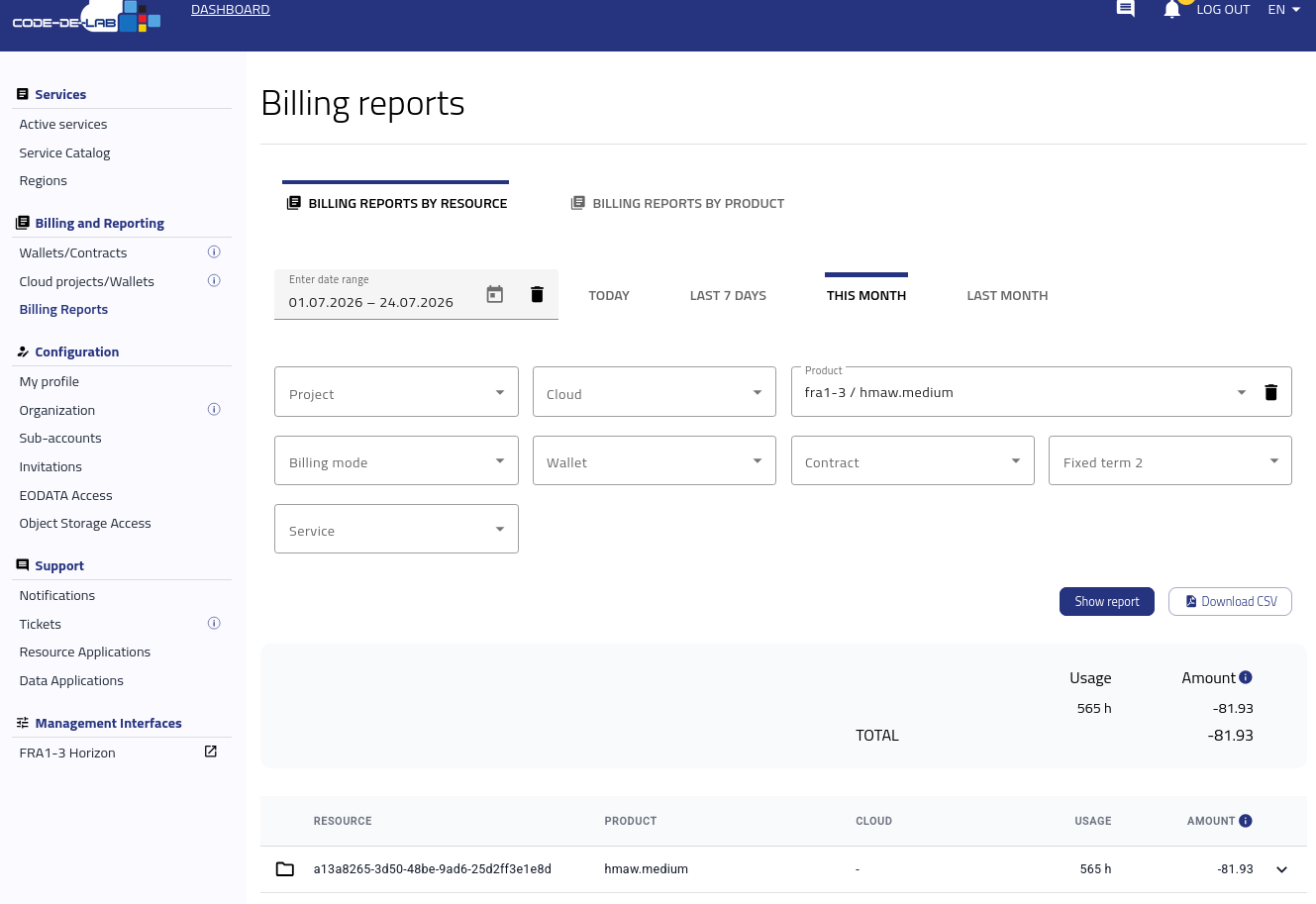
Both report types use the same filter panel. Specify the time window, project, and cloud, then apply any additional filters needed for the report.
The available filters are:
Date range – Select manually or use quick presets (Today, Last 7 Days, etc.).
Project – Choose one of your OpenStack projects.
Cloud – Select FRA1-3, the only cloud region currently configured for CODE-DE-Lab.
Product – Filter by billable product. Use the search field to narrow the list.
Billing mode – PPU, PAYG, or FIXED-TERM.
Wallet – Limit the report to usage paid from a specific wallet.
Contract – Limit the report to usage billed under a specific named contract. The same assignment appears in the Wallet/Contract column under Active services.
Fixed term 2 – Limit the report to usage associated with a Fixed Term 2 assignment. Review these assignments under Active services → Assigned fixed-term services or Fixed-term 2 management.
Service – Filter by platform service.
Select Show report. The results displayed below the filter panel depend on the selected report type.
Billing reports by product
This report aggregates usage and costs by product type, such as a VM flavor or storage service. Use it for accounting, budgeting, cost forecasting, and tracking overall spending by service category.
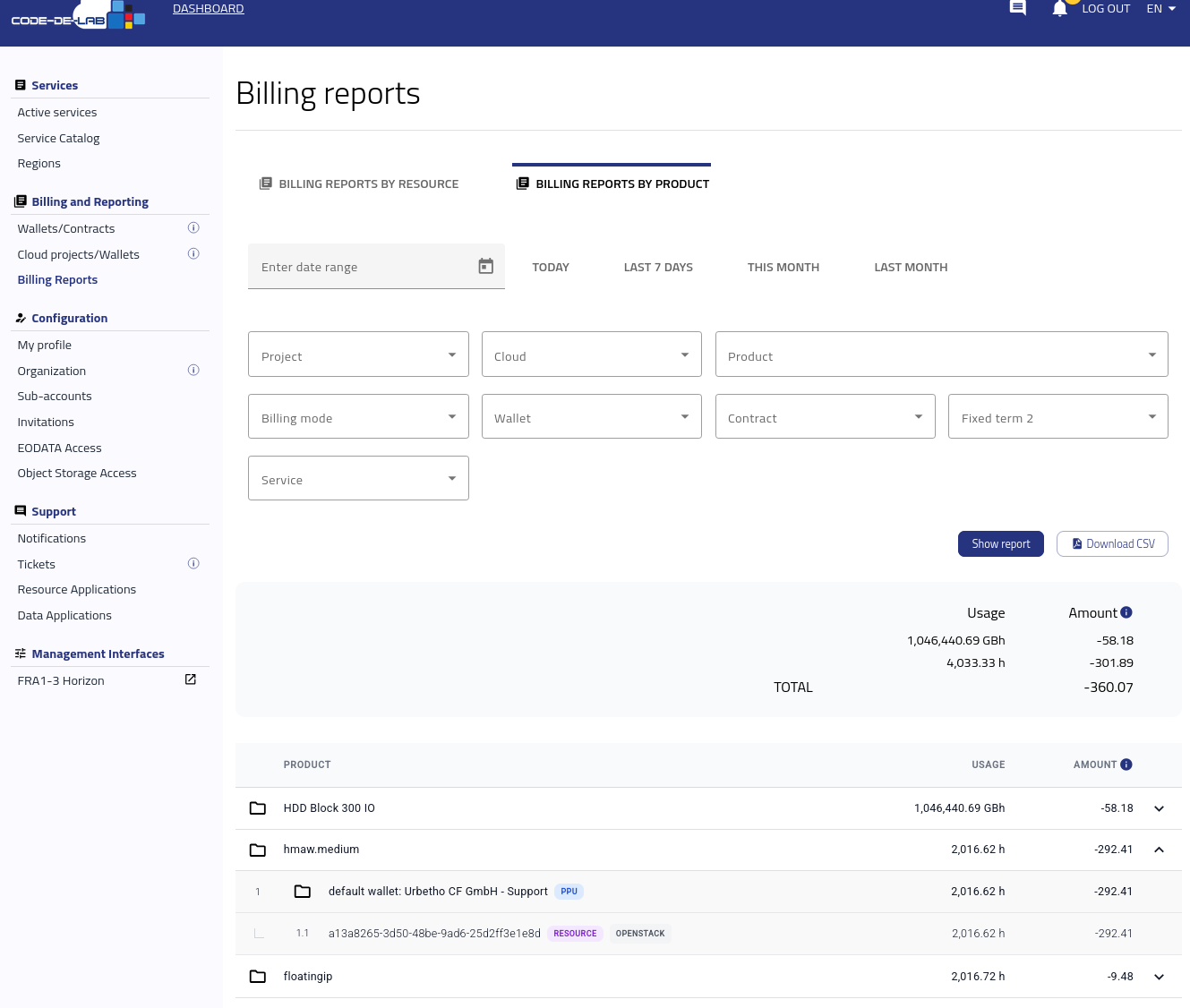
Billing report grouped by product type.
For example, if several instances use the eo2a.small or eo2a.large flavor, the report displays the total usage and cost for each flavor rather than a separate line for every instance.
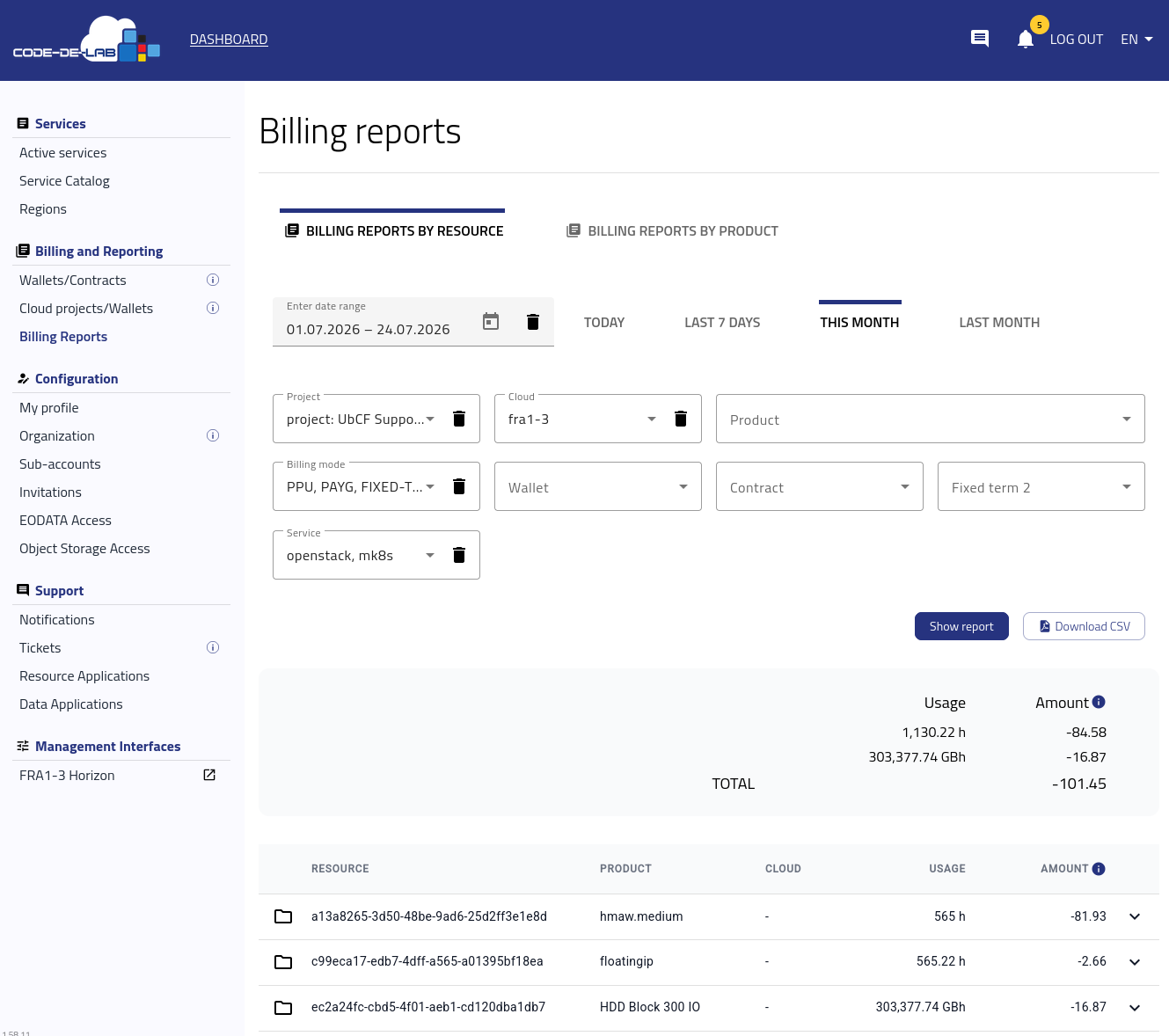
Billing reports by resource
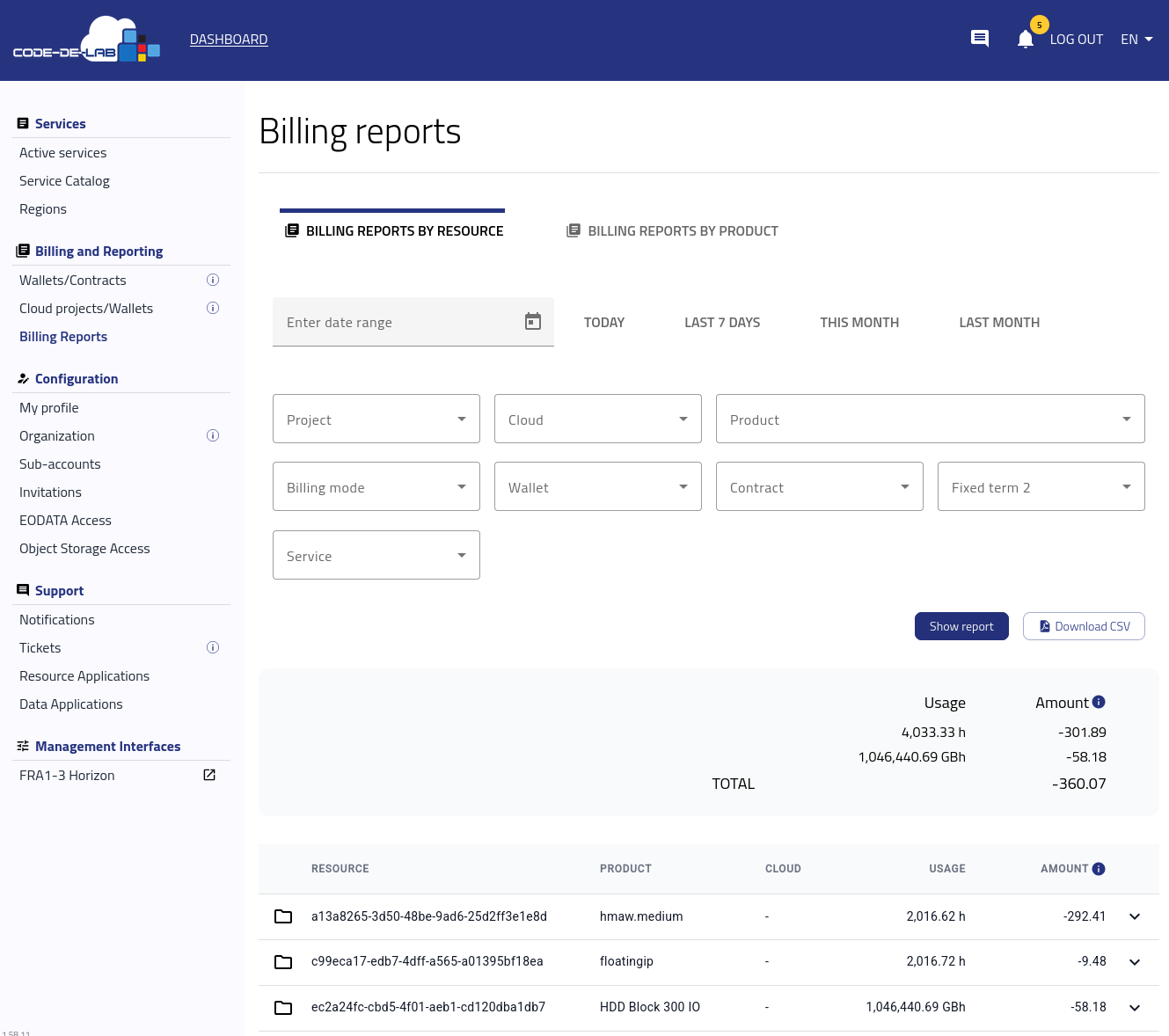
This report itemizes each resource, such as a virtual machine or storage bucket, that contributed to the total. Each line includes a unique resource ID corresponding to an object in the OpenStack project.
Billing report grouped by individual resources — each VM and storage bucket itemized separately.
Use this report to:
Audit which specific VMs or storage buckets consumed resources.
Reconcile usage between teams or projects.
Identify underutilized or idle resources.
Confirm that terminated resources have stopped generating charges.
Choose a report type
Goal |
Recommended Report |
|---|---|
Check total monthly compute spending |
Billing by Product |
Identify which VM caused unexpected costs |
Billing by Resource |
Prepare finance or accounting summaries |
Billing by Product |
Audit or troubleshoot specific workloads |
Billing by Resource |
Review and export reports
Tip
For a monthly review, start with Billing by Product for an overview, then use Billing by Resource to investigate individual costs.
Export both reports as CSV files and archive them monthly for audit and trend analysis.
What to do next
If the report shows that a project is using the wrong wallet or contract, follow Accounts and Projects Management on CODE-DE-Lab to review the current and next billing assignments.
For charges that cannot be reconciled with the project, resource, and billing-mode information in the report, submit the relevant details through Help desk and support.